Turn on browser notifications
Last updated: September 16, 2026
Broadcaster can pop up a notification on your computer or phone the moment someone messages you, so you can reply straight away instead of watching the screen. Switching it on takes about two minutes on each device you use.
What you get
Once notifications are on, a small pop-up appears in the corner of your screen whenever a new message arrives, even when Broadcaster is in a background tab or the app is closed. Click it and it opens that conversation. Nothing changes for the people messaging you; this only changes whether you are told.
Notifications are set per device. Turning them on for your laptop does nothing for your phone, so repeat the steps on each one.
Turn notifications on
Step 1: the main switch
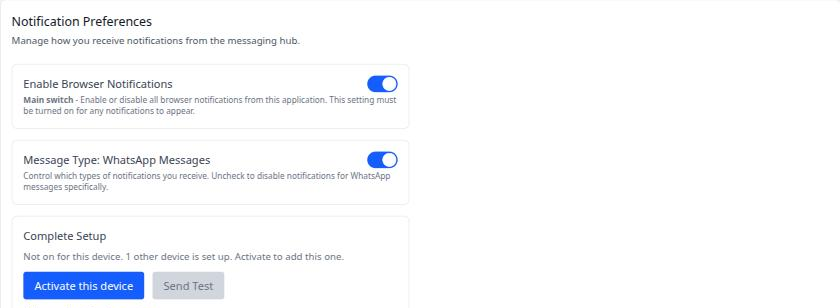
Log in to Broadcaster, click your name in the top right and choose Profile. Scroll to Notification Preferences and switch on Enable Browser Notifications. This is the main switch: nothing appears until it is on.
A second switch, Message Type: WhatsApp Messages, appears beneath it. Leave it on.
Step 2: allow it when your browser asks
The first time you switch notifications on, your browser shows its own small pop-up near the web address, asking whether Broadcaster may show notifications. Click Allow.
This pop-up is easy to miss and normally appears only once. If you click Block, or it disappears before you reach it, notifications will not work until you allow them again; the fix is under Common gotchas below.
Step 3: activate this device
Under Complete Setup, the line of text tells you where this device stands: not on yet, on for this device, or not on for this device with a count of the others that are. Press Activate this device. It can take up to 30 seconds.
Step 4: send yourself a test
Once the device is activated, Send Test becomes available. Press it. If a pop-up appears in the corner of your screen, you are done. Send Test stays greyed out until Activate has finished; that is the order, not a fault.
If the test does not appear
Open the notification check page by adding /notification-test to your Broadcaster web address. It shows a Notification Status panel saying whether notifications are enabled on this device, with two buttons: Force Subscribe, which registers this browser from scratch, and Test Notification. Press Force Subscribe, allow the browser prompt if it asks again, then Test Notification. This is the quickest fix when the main switch alone did not do it.
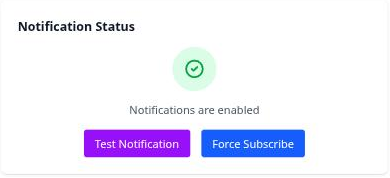
The panels beneath it are technical detail for support; you do not need them.
Common gotchas
- The browser’s Allow pop-up. The most common reason notifications do not work. If you blocked it or missed it, click the padlock, or the small icon just left of the web address, find Notifications and set it to Allow. Then run the test again. The Notification Preferences card says so too when it can tell the browser has blocked them.
- On a Mac, your browser also needs permission from macOS. This catches almost everyone. Even with Broadcaster and the browser both set to allow, macOS keeps a switch of its own. Open System Settings, then Notifications, find your browser in the list and turn Allow Notifications on. If it is off, the Mac hides every notification with no error anywhere.
- Do Not Disturb. If Do Not Disturb is on in Broadcaster, in the section just below Notification Preferences, or a Focus or Do Not Disturb mode is on for your computer or phone, notifications are silenced on purpose. Messages still arrive in the app.
- On an iPhone or iPad. Notifications work only when Broadcaster is added to your Home Screen and opened from that icon, not from a browser tab. After installing it, switch notifications on inside the app as above, then check the phone’s Settings, then Notifications, where Broadcaster appears under its own name.
- Turning them off and on again. Switching the main switch off removes this device’s registration; switching it back on restores it. If the panel says notifications are on but nothing arrives, press Activate this device again and send a test.
Written by Document Manager