Sending WhatsApp Appointment Reminders from RealGreen Service Assistant
Last updated: September 16, 2026
If you run your lawn care or grounds maintenance business on RealGreen Service Assistant (SA5), Broadcaster connects to it directly. Your customers and their upcoming visits come into Broadcaster on their own, WhatsApp reminders go out before each visit, and every reminder is written back into SA5 as a call log entry.
What your customers receive
A WhatsApp message from your business number ahead of each scheduled visit, with their name, the date and time, and whatever else your reminder template says. You choose the timing: a few days before, the day before, the morning of, or a combination, under Appointments, then Settings.
Because the details come straight from SA5, there is nothing to retype and nothing to keep in step by hand.
How it works
Unlike a calendar feed, which only sees an event’s title and time, the RealGreen connection reads your SA5 customer records and programmes, so it knows who the visit is for, what the service is, and where. Broadcaster checks SA5 once an hour for new and changed visits. When a reminder is sent, Broadcaster logs it against the customer in SA5, so anyone looking at the account in SA5 can see a reminder went out and when.
What you need
- RealGreen Service Assistant 5.
- The SA5 API add-on on your RealGreen account. This is a paid add-on from WorkWave; your RealGreen account manager can switch it on.
- Your SA5 API details from WorkWave: a Connection ID, an API Key and an Account ID.
The RealGreen connection is switched on for your account by support, at no charge. Direct connections to other systems are handled this way so you only see the ones you will use, and so nothing connects to your existing data by accident. If you do not see the RealGreen Service Assistant card under Integrations, press Help in the app or email [email protected] and ask for it.
If you cannot get API access
If you do not have the SA5 API add-on, or cannot get permission for it, there is still a workable route, and it needs nothing from WorkWave. Download RealGreen’s ScheduledServices report as a CSV, the one-click export of your upcoming visits with the customer on each row, and drop it on the Broadcaster Auto-Uploader on your computer. The Auto-Uploader comes with a ready-made Real Green setup: choose it once, and from then on every ScheduledServices file you save to the watched folder is sent to Broadcaster on its own. It imports the customers as contacts and their visits as appointments, and the reminders go out in exactly the same way as with the direct connection.
What you give up is the write-back: without the API, reminders are not logged into SA5 as call entries, and changes in SA5 reach Broadcaster when you next export rather than every hour. What you keep is everything a customer sees.
The Auto-Uploader is a free download; Download, install and set up the Auto-Uploader walks through it, including the Real Green setup and the code names that turn RealGreen’s service codes into plain words in your messages. Use it for the RealGreen file whether you export once or every week: it is what turns RealGreen’s layout into the one Broadcaster reads. The spreadsheet import inside Broadcaster, described in the Advanced setup guide, takes only Broadcaster’s own spreadsheet layout and will not read a RealGreen export as it comes.
Set up the connection
- Open Integrations in the left-hand menu.
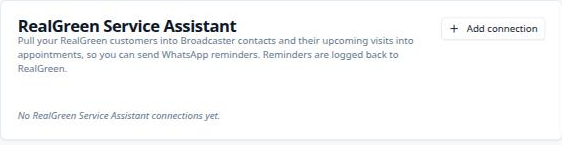
- On the RealGreen Service Assistant card, press Add connection.
- Fill in the form: a Label for the connection, your Connection ID, API Key and Account ID, how Appointment times should be shown, and the Appointment title pattern that names each visit in Broadcaster.
- Press Save connection.
Broadcaster runs straight away and then every hour. The card shows the last and next run, what was created and updated, and Run now if you do not want to wait.
Two settings on the card decide how SA5 customers arrive in Broadcaster:
- RealGreen status codes. For each SA5 customer status, choose whether people with that status come in as a Contact, as a Prospect, or are ignored.
- RealGreen flags to keep as tags. Choose which SA5 flags become tags on the contact, so you can use them to build a campaign audience.
How customers are matched
Each SA5 customer is matched to a Broadcaster contact by their SA5 customer number first, then by phone number, then by email. A customer with no match is created according to the status code setting above, so the list fills itself and stays in step: change a customer’s phone number in SA5 and Broadcaster follows on the next run.
What comes across
| From SA5 | In Broadcaster |
|---|---|
| Visit date and scheduled time | The appointment, ready for reminders |
| Service type | The appointment’s title, from your title pattern |
| Customer name, phone and email | The contact |
| Customer address | The appointment’s address |
| Customer status | Contact, Prospect or ignored, per your setting |
| Customer flags | Tags, per your setting |
| Each reminder sent | A call log entry on the customer in SA5 |
Where to look when something is off
View activity on the card opens the Integration Activity page, a log of every run with what was created, updated and rejected, and the reason for each rejection.
Is this the right connection for you?
If SA5 is your main system and you want WhatsApp reminders before every scheduled visit, this is the most complete way to connect Broadcaster: no exports, no calendar, and a record in SA5 of every reminder sent. If you would like to see it working before you commit, get in touch and we will walk you through it.
Written by alan