Add a WhatsApp contact button to your website
Last updated: September 16, 2026
A contact widget is a small “Message via WhatsApp” card that sits in the corner of your website. A visitor presses it, sends you a message, and that message lands in your Live Feed and Inbox like any other conversation, with the visitor as a new Prospect. You reply on WhatsApp from there.
Setting one up takes about ten minutes. You will paste one line of code into your website, so if someone else looks after your site, that is the point at which you send it to them. Contact widgets are included in your subscription; if the page says they need an active subscription, your plan has lapsed.
What your visitors see
The button is a small card with your business name and logo and the words “Message via WhatsApp”. Pressing it opens a short form: their WhatsApp phone number, their name, and their message. When they press Send, the message arrives in Broadcaster, the form says thank you, and if you have set an automatic reply, that reply goes to them on WhatsApp straight away.
On a phone you can choose a shorter route. With On phones, open WhatsApp straight away switched on, a visitor on a phone jumps straight into a WhatsApp chat with your business, with your starting message already typed, and never sees the form. New widgets have this switched off, so everyone gets the form until you turn it on. There is more on the trade-off under Common gotchas.
Step 1: Create the widget
Open Contact Widgets in the left-hand menu and press Create widget.

You need two things:
- Widget name. Just for you; visitors never see it. If you run more than one site, name it after the site.
- Where it can run. The website addresses this widget may work on. Type them as plain domains,
example.comrather thanhttps://example.com. Add bothexample.comandwww.example.comif your site answers on both, or use*.example.comto cover every subdomain at once. A message sent from any other address is refused.
Press Create widget. You land on the widget’s settings page with a fresh public key.
Step 2: Copy the snippet into your website
Scroll to Put it on your website. The Embed snippet is a single script tag with your public key already in it. Press Copy snippet.
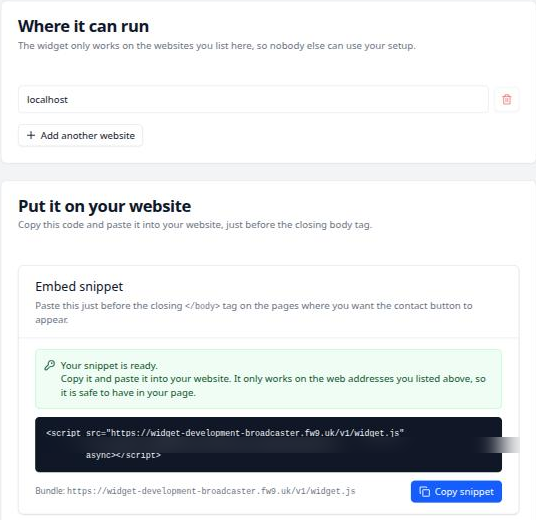
Paste it just before the closing </body> tag on every page where you want the button to appear. Most website builders have a box for exactly this, called something like custom code, footer scripts or tracking code, and pasting it there puts it on every page at once.
Reload your website and the button appears in the corner within a second or two.
The public key is not a secret, since it sits in your page for anyone to read, and it only works on the addresses you listed. If you ever need to cut off an old embed, Rotate key gives you a new one; the old snippet stops working the moment you do, so paste the new one in first thing.
Step 3: Make it yours
Everything on the settings page saves as you change it, and the preview on the right shows the result.
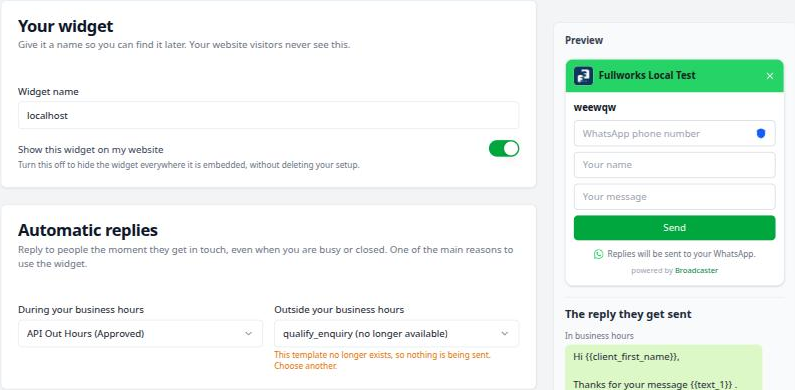
- Show this widget on my website takes the button down everywhere without touching your site. Switch it off while you are away, or if enquiries are coming faster than you can answer.
- Automatic replies. Choose a WhatsApp template to send the moment a message arrives, one for During your business hours and one for Outside your business hours. The outside-hours one is the point: someone who writes at 9pm hears back at 9pm. Only templates WhatsApp has approved will actually send. Each automatic reply is a template message and carries WhatsApp’s usual charge.
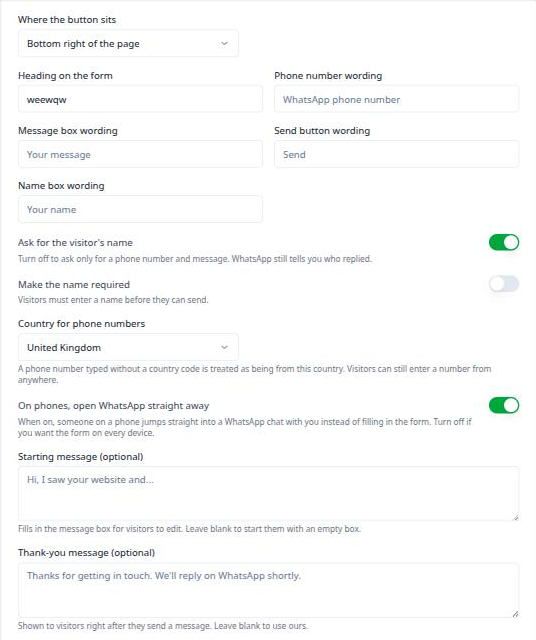
- Where the button sits: bottom right or bottom left of the page.
- Heading on the form, and the wording of the phone, message and name boxes and the Send button. Leave any of them blank to use ours.
- Ask for the visitor’s name is on by default. Turn it off to ask only for a number and a message; WhatsApp tells you who replied anyway. Make the name required stops a visitor sending without one.
- Country for phone numbers. A number typed without a country code is treated as being from this country. Visitors can still enter a number from anywhere.
- On phones, open WhatsApp straight away, described above.
- Starting message (optional) fills the message box so the visitor has somewhere to start, and it tells you they came from the website. It is also what a phone visitor finds already typed in WhatsApp.
- Thank-you message (optional) is what the form says once the message has gone.
Common gotchas
- The button does not appear and there is no error. The widget stays silent when it cannot run, so check three things in order: the snippet is on the page, the page’s address is in Where it can run (including the www. version), and Show this widget on my website is on. If your site has a Content Security Policy, it must allow scripts from
https://widget.getbroadcaster.com; your web developer will know what that means. - Still nothing? Your site may be cached. If you use a caching plugin or a CDN, clear it and look again in a private browsing window.
- The starting message is a starting point, not a sent message. A visitor can edit it or delete it, and still has to press Send.
- On phones, straight to WhatsApp means you only hear about the ones who send. A visitor handed to WhatsApp who then changes their mind leaves no record in Broadcaster. If you would rather capture every enquiry, leave the switch off and everyone gets the form.
- No WhatsApp number connected means no direct opening. Until your account is connected to WhatsApp, the widget shows the form on every device whatever the switch says.
- Automatic replies follow your business hours switches. If replies during working hours are switched off in your settings, widget enquiries do not get one either, the same as messages on WhatsApp. And a visitor who writes twice in quick succession is greeted once.
- There is a ceiling. Each widget accepts 20 messages an hour, and a visitor who sends too quickly is asked to wait a moment. Every accepted message can cost you a reply, so the ceiling is there to protect your bill as much as your inbox.
- Put the form inside a page instead of in the corner. Add
data-broadcaster-widget="inline"to the snippet’s script tag and the form renders where the tag sits, for a contact page. Adddata-broadcaster-widget="none"on any page where the button should not appear at all.
Written by Document Manager