Download, install and set up the Auto-Uploader
Last updated: October 21, 2026
The Broadcaster Auto-Uploader is a small app for your Windows PC or Mac. It watches a folder for the CSV exports your CRM produces and sends them to Broadcaster for you, so your contacts and appointment reminders stay up to date without you lifting a finger. Setup takes about ten minutes, and after that it runs quietly in the background.
Before it sends anything for real, it does a practice run: it checks your file against Broadcaster and tells you exactly what a real upload would do. You only go live once you have seen that and you are happy.
Quick start
If you just want to get going, here is the short version. There is more detail on each step further down.
- Download the app for your computer:
- Windows: Download for Windows
- Mac: Download for Mac
- Install and open the app. The first time you run it, Windows or Mac may warn you about a new app. The platform steps below show how to get past that safely.
- Work through the four steps on the Home screen: paste your API key, choose the folder your exports land in, add your CRM’s ready-made setup, then go live.
- Run a file and read what the app says it would do.
- Press Go live when the numbers look right.
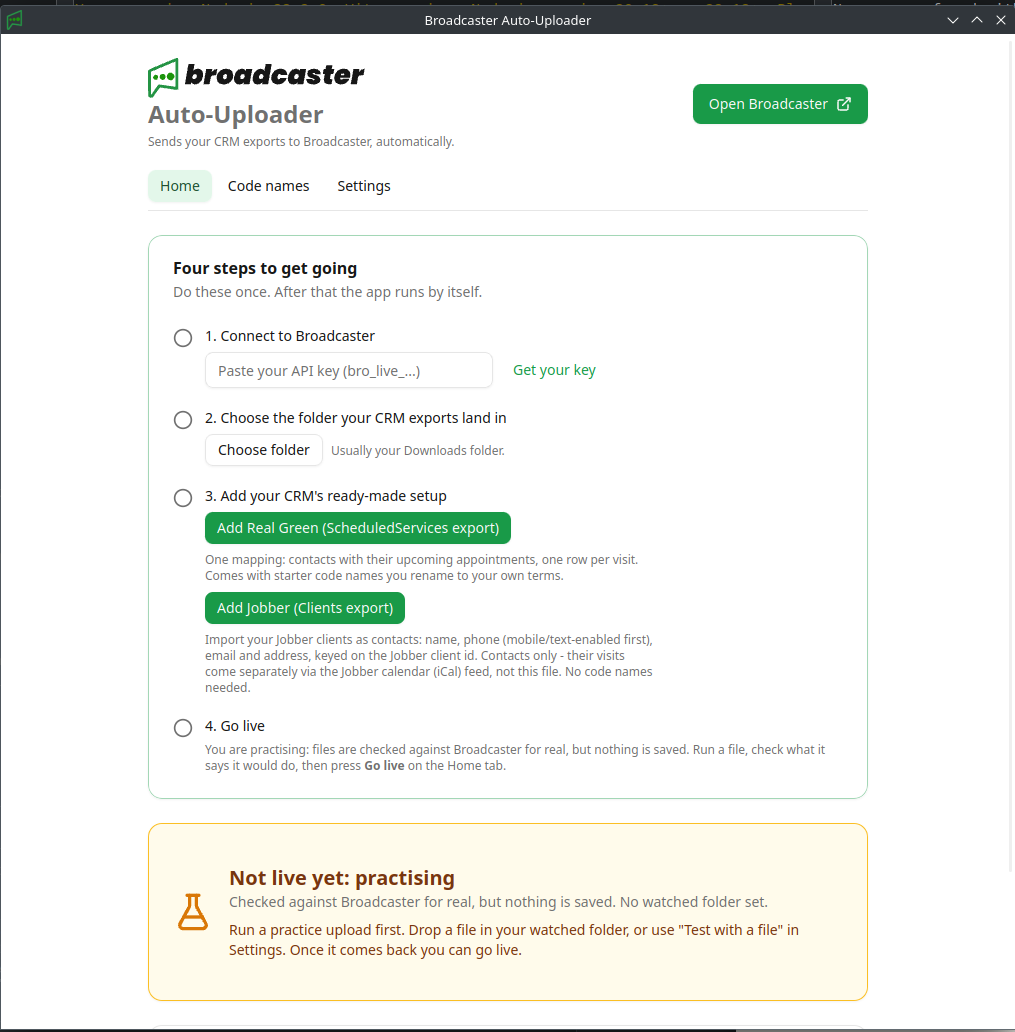
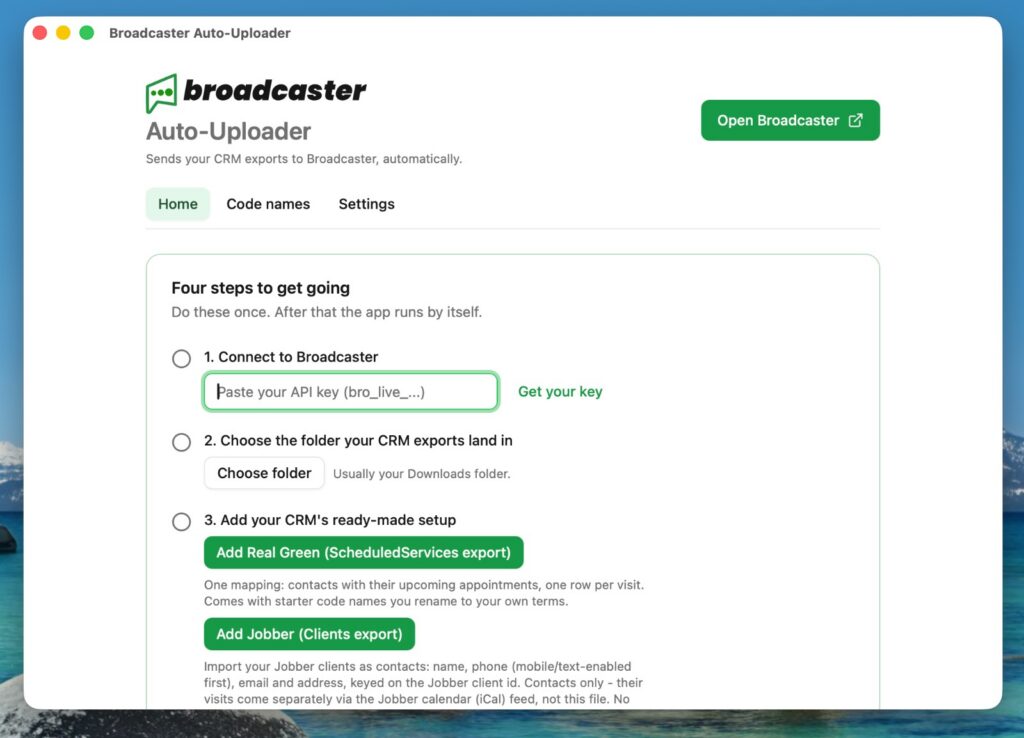
That is the Home screen when you first open the app. Nothing is set up yet, and notice the app tells you plainly that it is not live yet. It will not send anything until you say so, and the Go live button does not even appear until you have run a file and seen the result.
Getting your API key
The Auto-Uploader connects to your Broadcaster account with an API key. This is a long secret code that lets the app upload on your behalf. You create it once.
Step 1: Open the API Keys page
Log in to Broadcaster, go to Settings, then API Keys, and click Create API Key.
Step 2: Name it and allow CSV imports
Give the key a Name you will recognise later, such as “Auto-Uploader”. You can leave the expiry date blank so it never expires. Then tick Allow CSV imports. This part matters: without it, the app is not allowed to send your files.
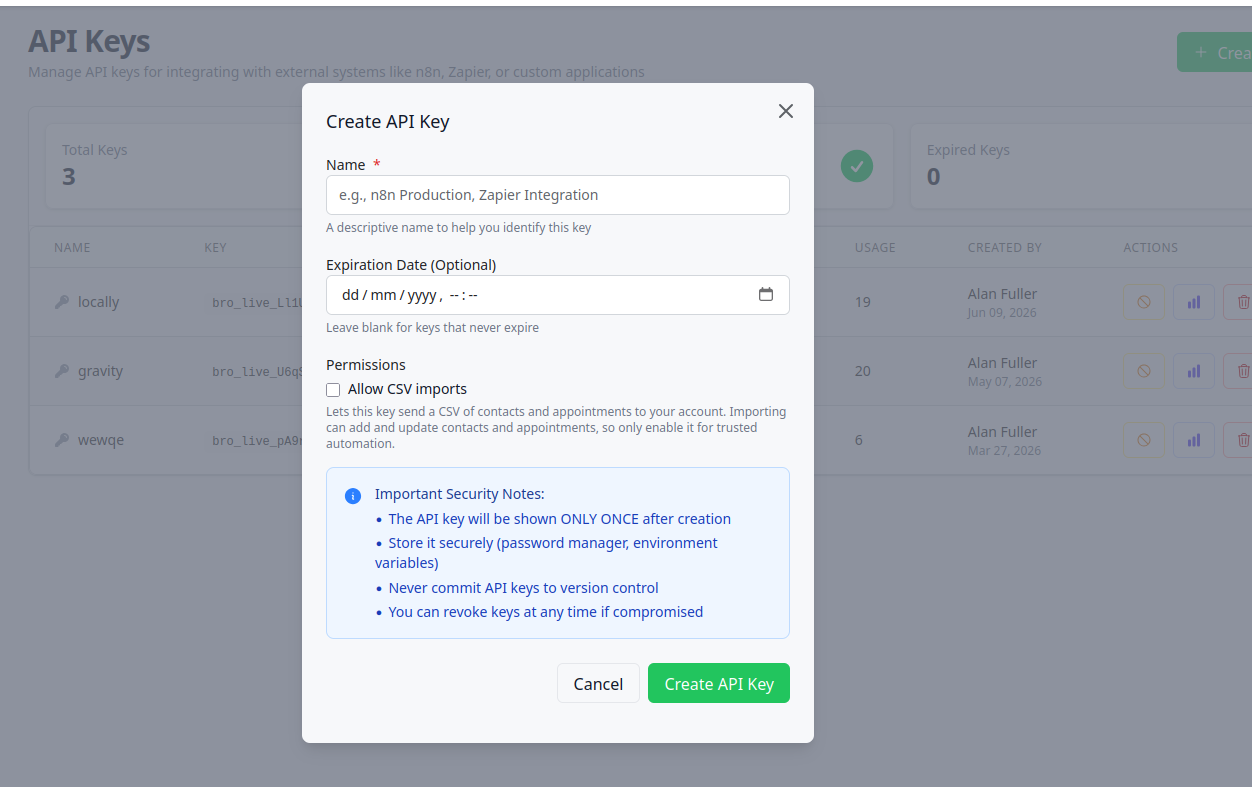
Click Create API Key.
Step 3: Copy the key
Broadcaster shows the key once, and only once. Click Copy and keep it somewhere safe for a moment. If you ever lose it, you can create another.
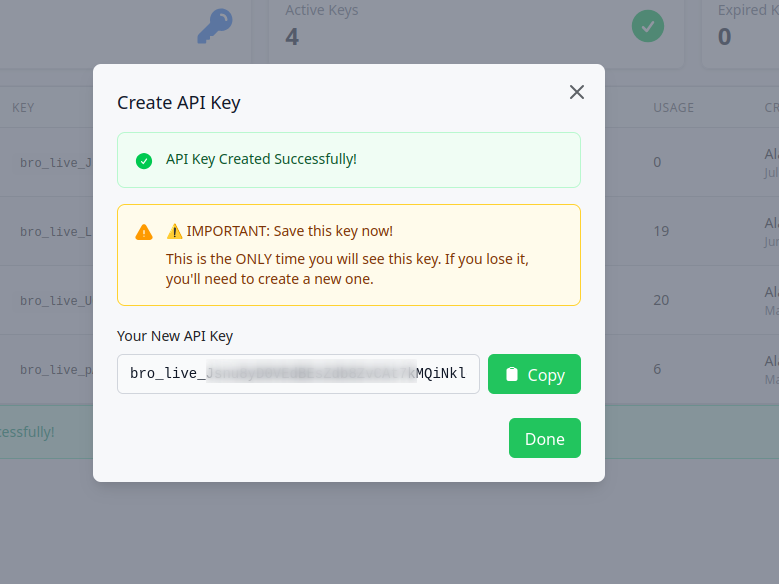
Back in the Auto-Uploader, paste the key into the first step on the Home screen. It starts with bro_live_.
Keep this key private. Anyone who has it can upload to your account. If it is ever exposed, delete it on the API Keys page and create a new one.
Installing on Windows
Downloading and installing takes a couple of minutes.
Step 1: Download and run the installer
Download the Windows installer using the link above, then open it from your Downloads. The file is named Broadcaster-Auto-Uploader-Windows-Setup.exe.
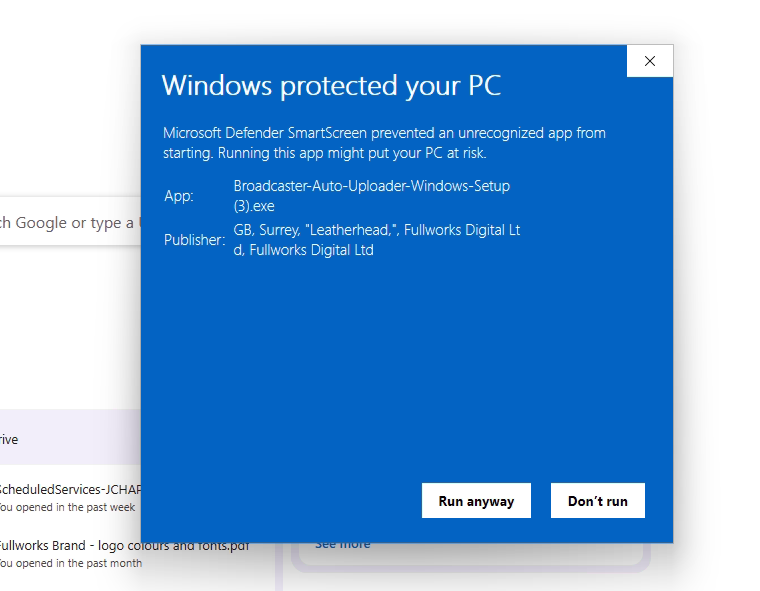
Step 2: Get past the SmartScreen warning
Because the app is new, Windows may show a blue “Windows protected your PC” screen. This is normal for a newly released app and does not mean anything is wrong. Click More info.
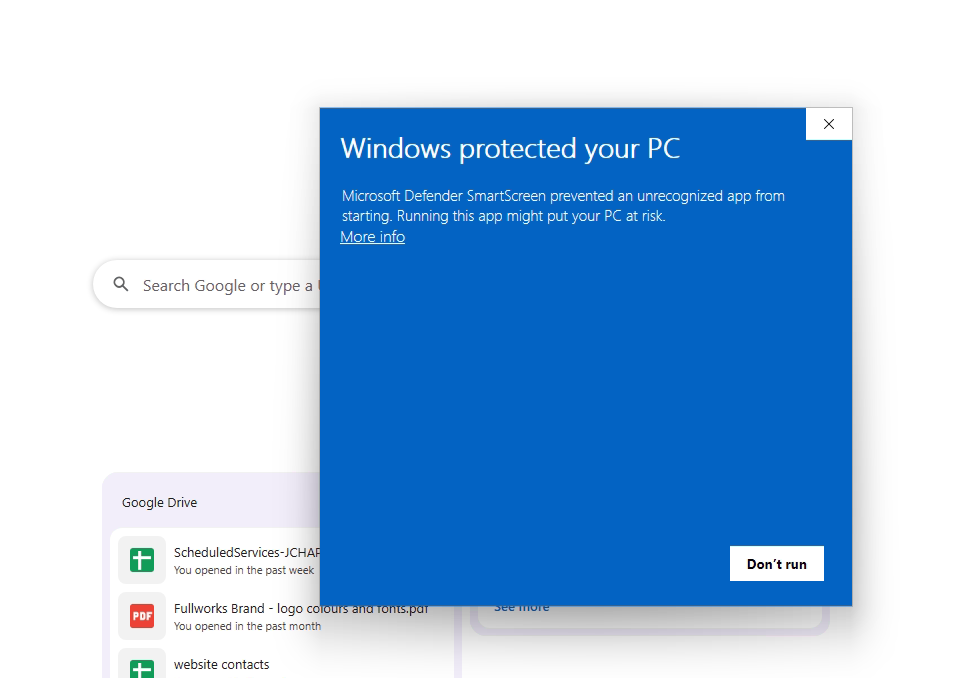
The screen then shows the app details. Check that the Publisher reads Fullworks Digital Ltd. That confirms it is the genuine Broadcaster app. Then click Run anyway.
Step 3: Finish
Follow the installer prompts to finish. The Auto-Uploader opens, and you can work through the four steps below.
Installing on Mac
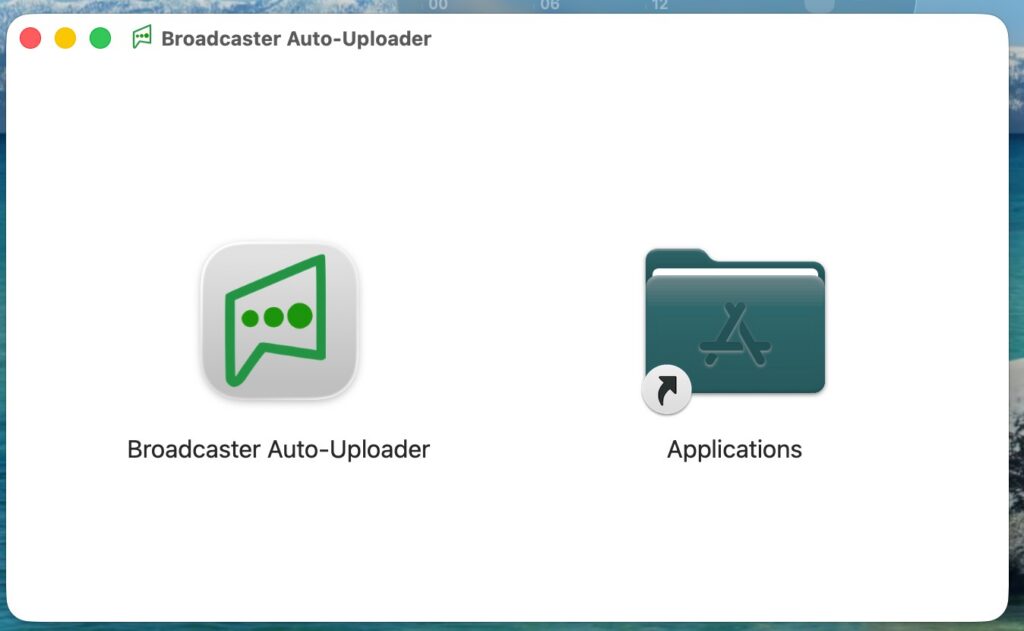
Step 1: Download and open the disk image
Download the Mac version using the link above. It is a .dmg file named Broadcaster-Auto-Uploader-macOS.dmg. Open it, then drag the Broadcaster Auto-Uploader icon into your Applications folder.
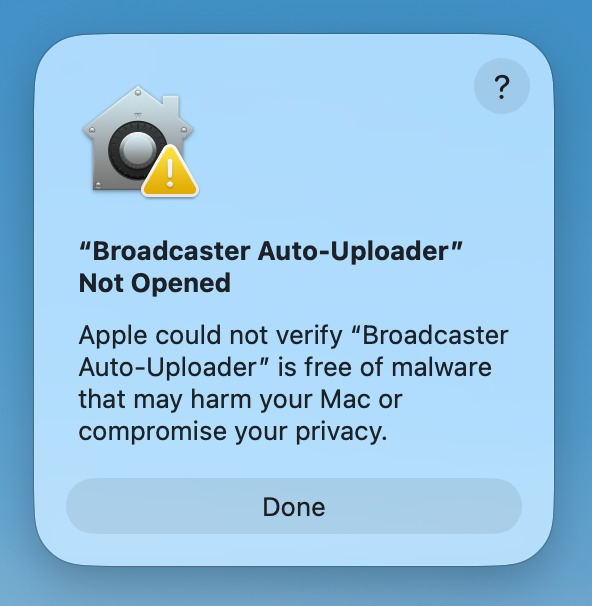
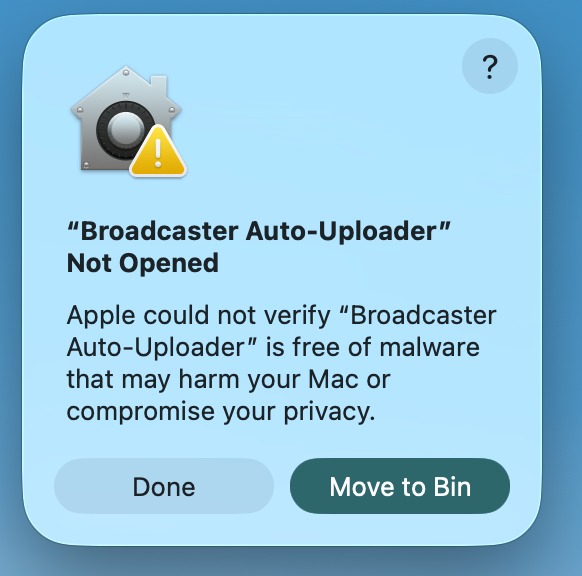
Step 2: Get past the Gatekeeper warning
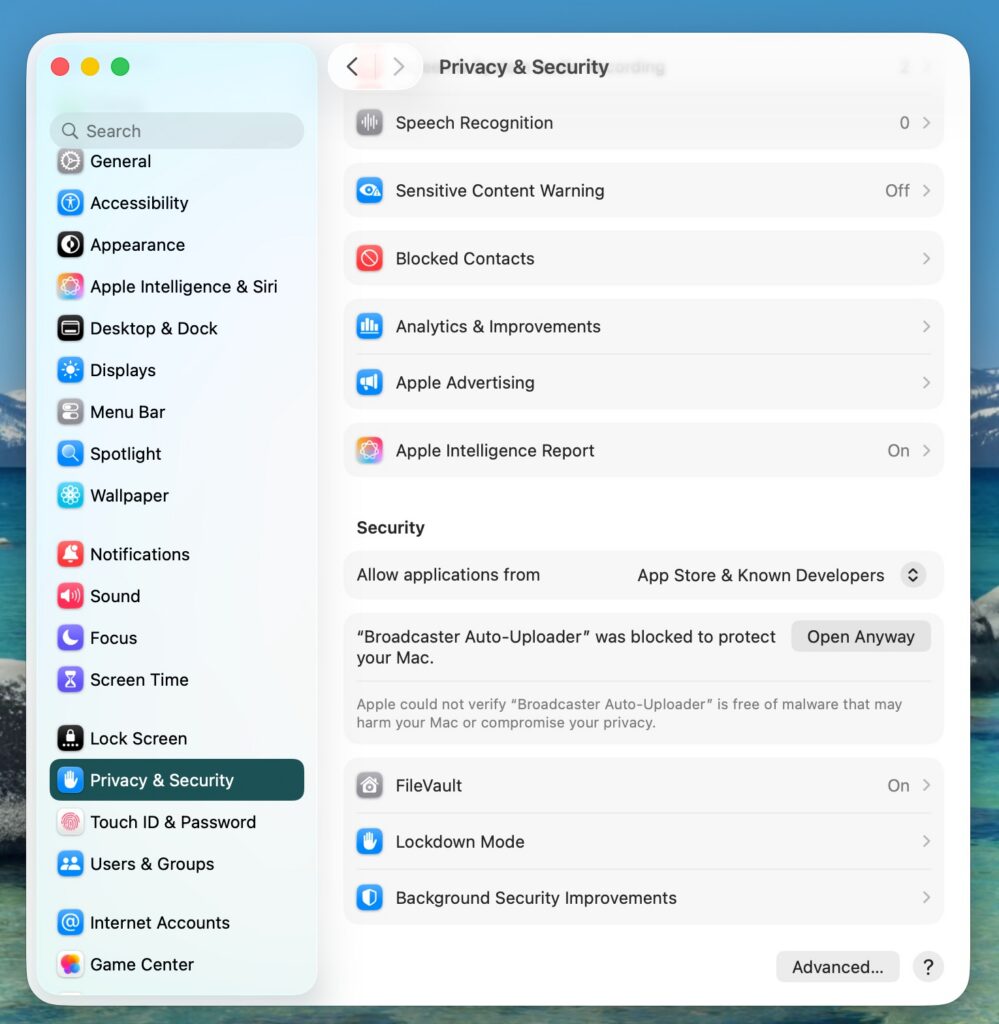
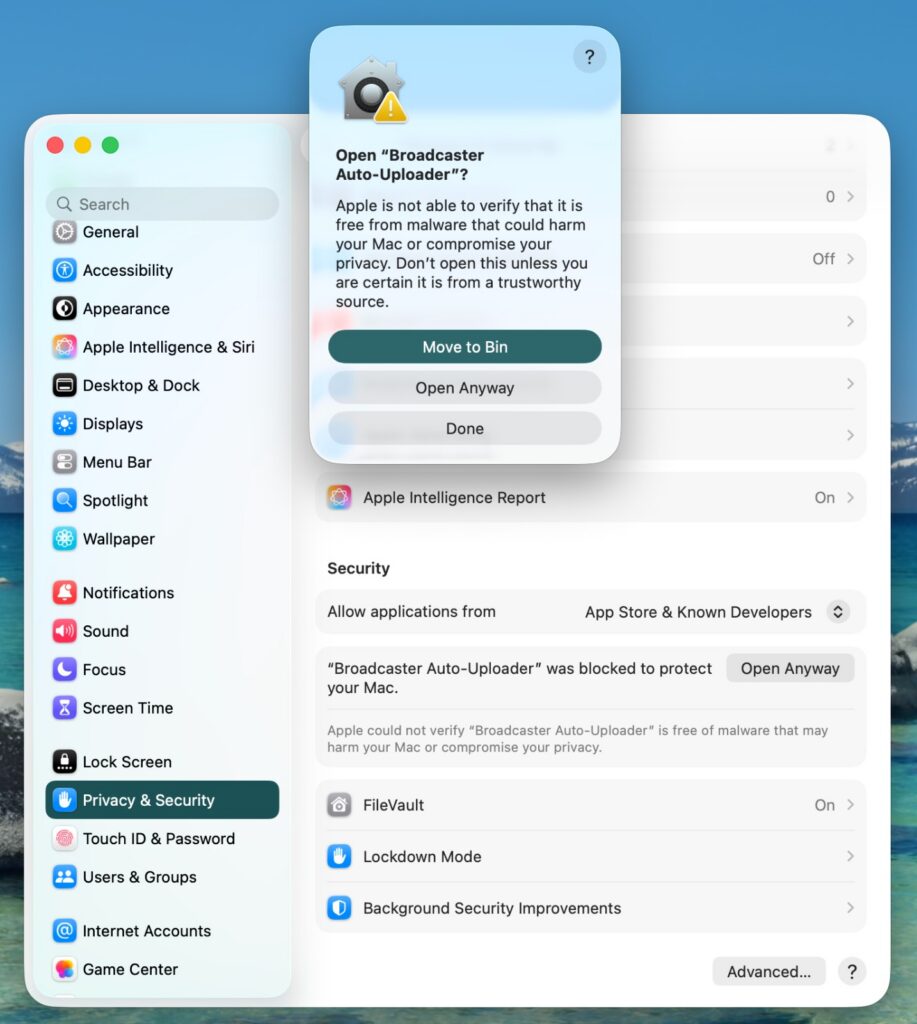
The first time you open the app, macOS may say it “cannot be opened because Apple cannot check it for malicious software”. This is normal for a newly released app. To open it safely, do one of the following:
- Right-click (or Control-click) the Broadcaster Auto-Uploader app in your Applications folder, choose Open, then click Open again in the box that appears.
- If there is no Open button, go to the Apple menu, then System Settings, then Privacy & Security. Scroll down and click Open Anyway next to the Broadcaster message.
You only need to do this once. After that the app opens normally.
Setting up and going live
The Home screen walks you through four steps. Do them once and the app runs by itself.
Step 1: Connect to Broadcaster
Paste your API key into the first box. The app checks it with Broadcaster straight away and tells you if there is a problem.
Step 2: Choose your folder
Click Choose folder and pick the folder your CRM exports land in. This is usually your Downloads folder.
Step 3: Add your CRM’s setup
Click the button for your CRM (for example Real Green or Jobber). This tells the app how to read your files. Real Green also comes with starter code names you can rename to your own words on the Code names tab.
Step 4: Run a file and check it
Drop an export into your watched folder, or use Test with a file in Settings. The app checks it against Broadcaster for real, but saves nothing, and then tells you what a live upload would do.
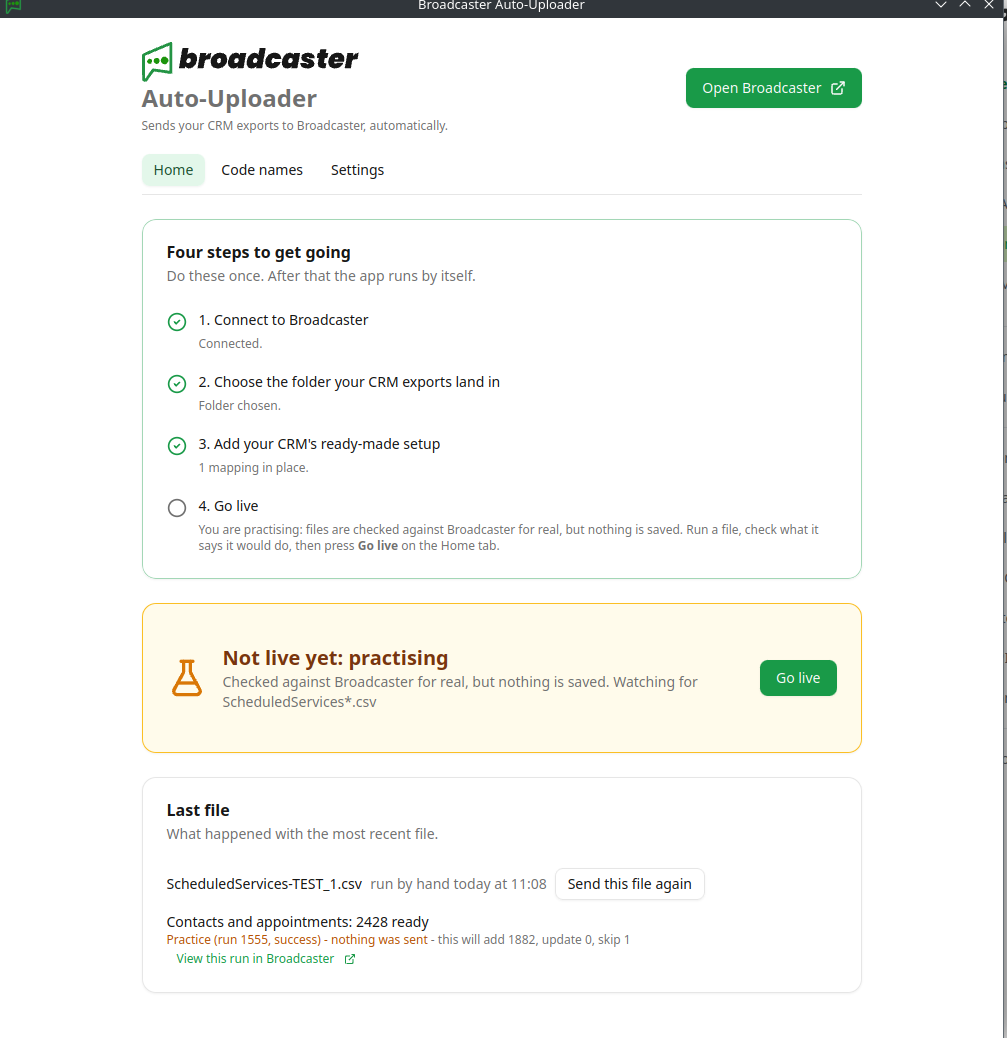
Here the app has checked a file and reports that it would add 1,882 contacts and skip 1 row, and that nothing was sent. Now that it has a result, the Go live button appears.
Read the numbers before you go further. If they look about right for your business, carry on. If the app says it would add thousands of people when you only have a few hundred, something is wrong: you have probably pointed it at the wrong folder or an old export. Fix that and run it again. Nothing has been sent, so there is no harm done.
To see the detail behind those numbers, click View this run in Broadcaster.
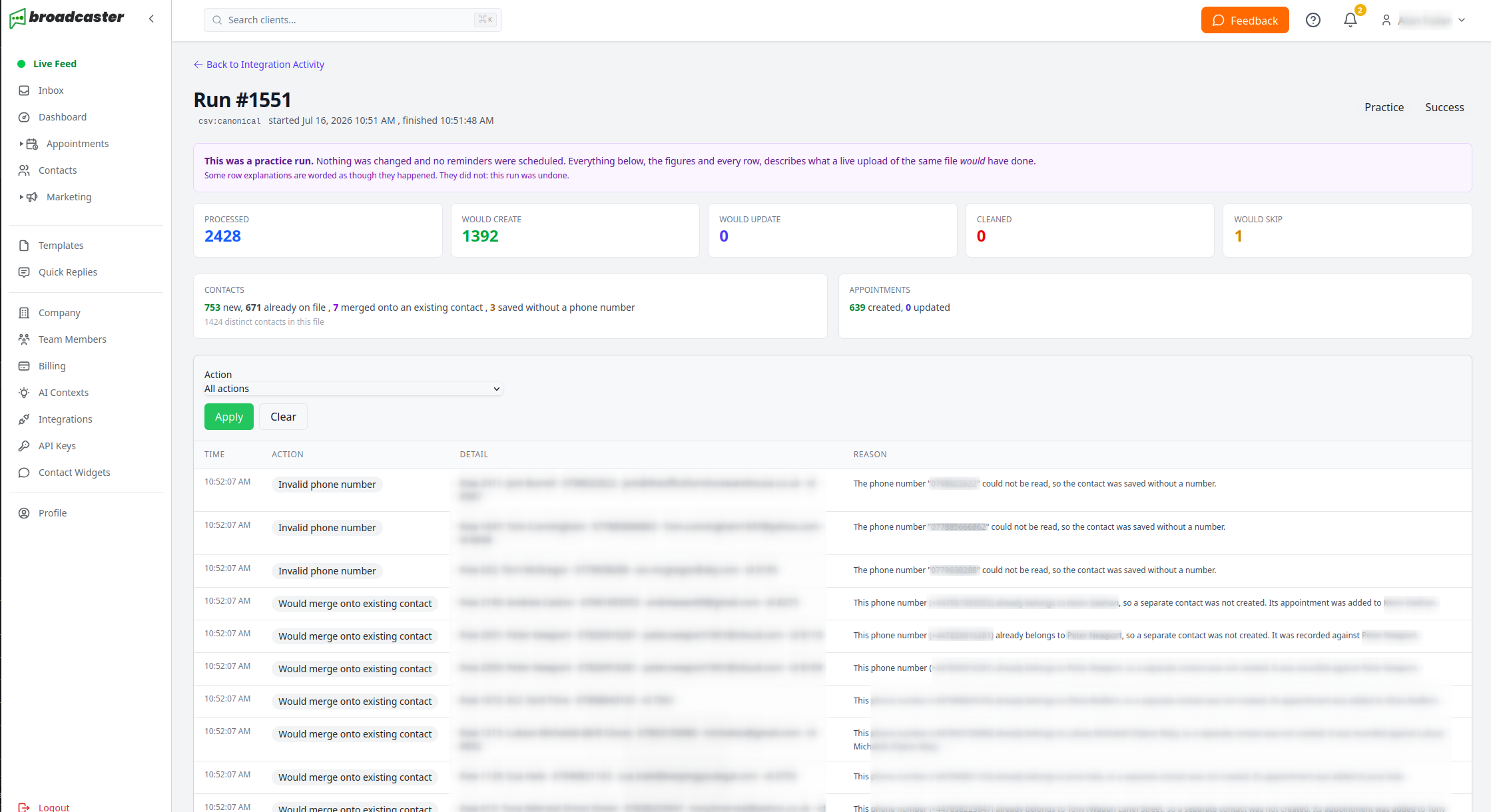
Your Broadcaster dashboard shows the full run, marked Practice, with every row it looked at. It says Would create and Would skip rather than “created”, because nothing actually happened. This is also where you see any problems worth fixing at source, such as a phone number that could not be read, or two contacts sharing a number.
Step 5: Go live
When you are happy, press Go live.
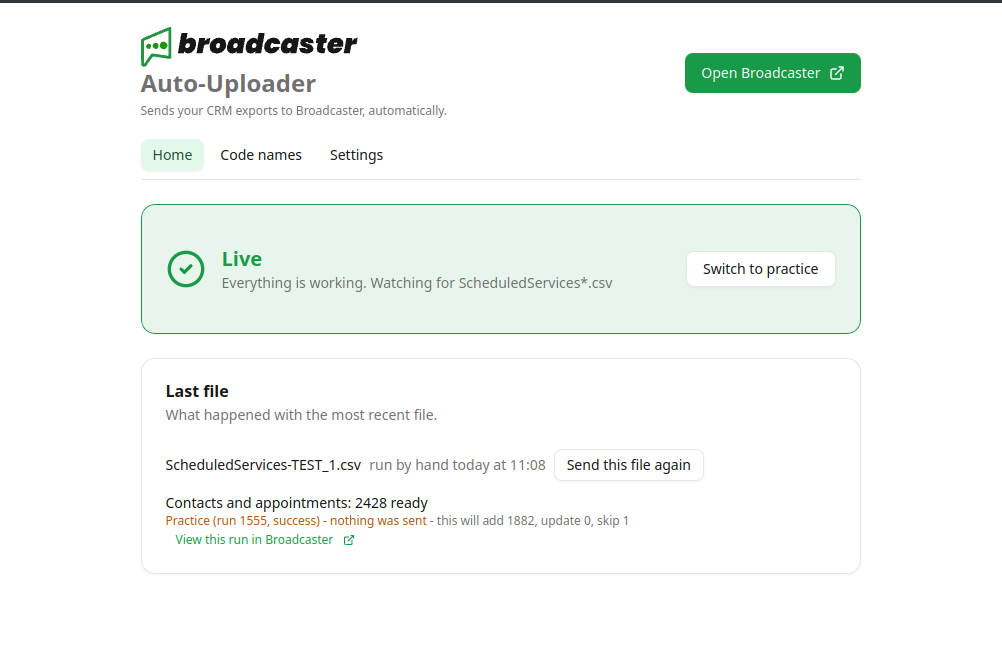
The app now says Live and sends your files automatically from here on. If you ever want to stop sending and go back to checking, press Switch to practice.
Common gotchas
- The app says it is not live. That is normal until you press Go live. Run a file first, check what it says it would do, then the Go live button appears.
- There is no Go live button. The app will not let you go live until it has checked a file with Broadcaster and got a result back. Run a file, or use Test with a file in Settings. If your API key is wrong, no result comes back, and the button stays away until that is fixed.
- The numbers look far too big or too small. The app is probably watching the wrong folder, or picked up an old export. Nothing has been sent, so just fix it and run again.
- The app cannot upload. Check the API key is pasted correctly, and that Allow CSV imports was ticked when you created it. Without that permission the upload is refused.
- You lost the API key. You cannot see it again after it is created. Just create a new one on the API Keys page and paste that in.
- Some rows are waiting for codes to be named. Your CRM uses short codes the app cannot read yet. Name them on the Code names tab and they go with the next file.
Written by Document Manager