Connect your existing WhatsApp Business app to Broadcaster
Last updated: September 16, 2026
Already using the WhatsApp Business app on your phone? You can connect that same number to Broadcaster and keep using both, side by side. You carry on chatting one to one in the app, and Broadcaster handles your reminders, campaigns and automatic replies. This takes about fifteen minutes, with your computer and your phone next to each other.
What you get
When you connect this way (Meta calls it coexistence), nothing is taken away:
- You keep your number and carry on using the WhatsApp Business app on your phone exactly as now.
- Your messages appear in both places. A reply you type in the app shows in Broadcaster’s Live Feed and Inbox, and a message sent from Broadcaster shows in your app.
- You can bring your past chats across: up to six months of conversations, if you choose to share them on your phone during setup.
- You can bring your contacts across too, so you are not starting from an empty list. They arrive as Prospects; switch anyone you have done work for to Contact as you go.
This is the difference from setting up a new number, where you start fresh and old chats stay behind.
One thing to know up front: bringing your contacts and chats across is a one-time step during setup, and it has to be done within 24 hours of connecting. After that the offer closes. Messages you send from the app keep appearing in Broadcaster from then on with nothing more to do.
Before you begin
- Update the WhatsApp Business app first. You need version 2.24.17 or later, or the option to connect does not appear.
- Have your phone to hand. Part of this happens on your computer and part on your phone.
- Keep the app open on your phone during setup, so your past chats and contacts can finish coming across. It can take a few minutes.
- You log in with your Facebook account to authorise the connection, as with any WhatsApp setup.
How to connect
Step 1: Start in Broadcaster
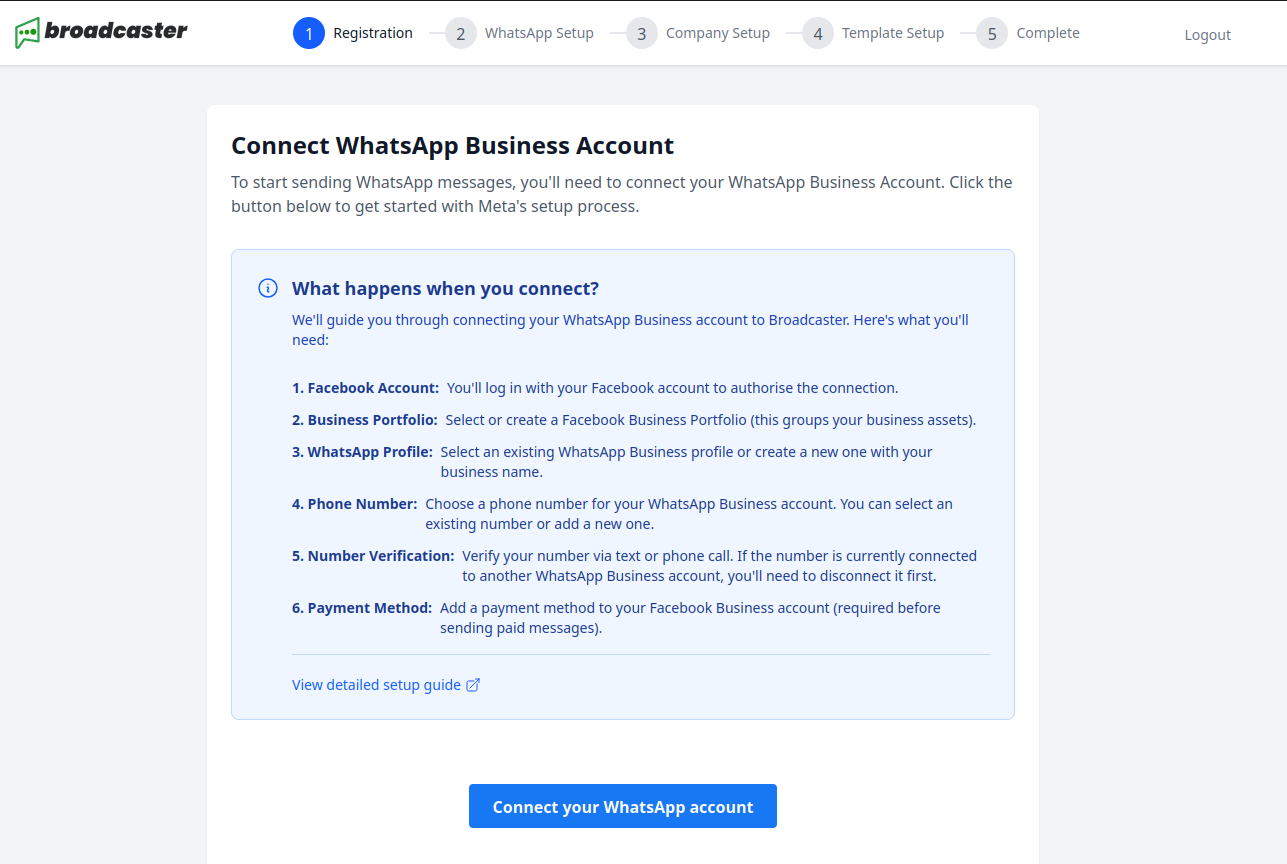
On the Connect WhatsApp Business Account screen, press Connect your WhatsApp account. A Meta window opens on top.
Step 2: Log in and give permission
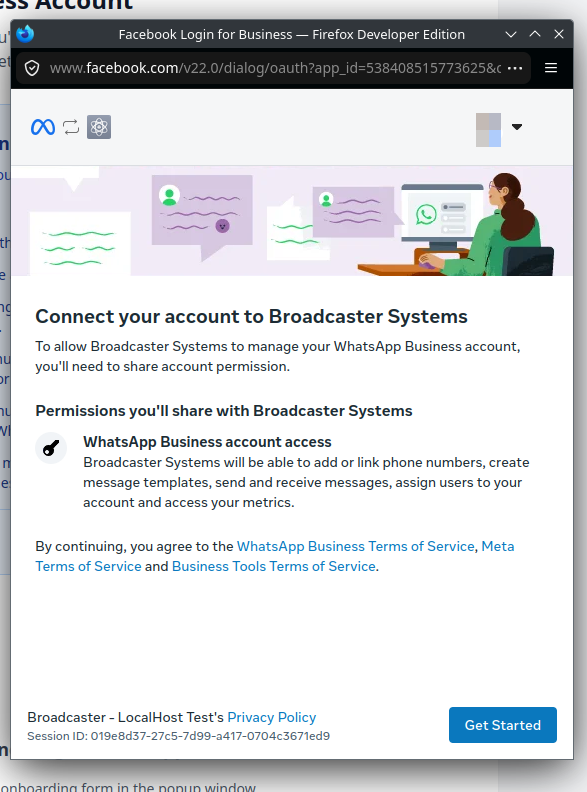
Log in with your Facebook account, then press Get Started to let Broadcaster send and receive messages on your behalf.
Step 3: Choose to connect your existing app
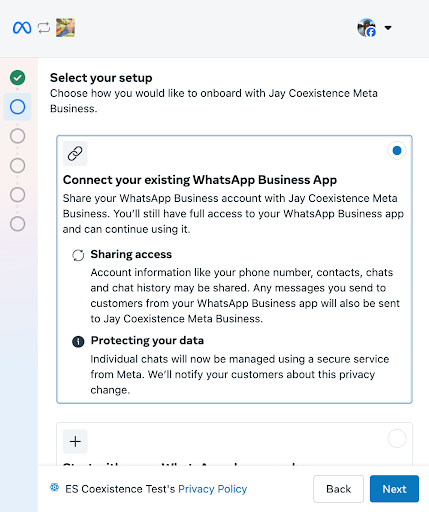
When asked how you want to set up, choose Connect your existing WhatsApp Business App.
Step 4: Enter your existing number
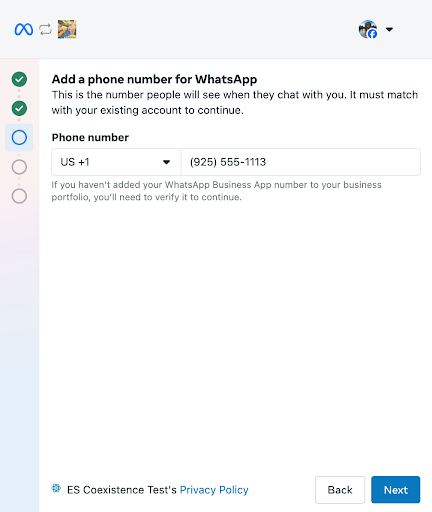
Type the number you already use in the WhatsApp Business app. It must match exactly.
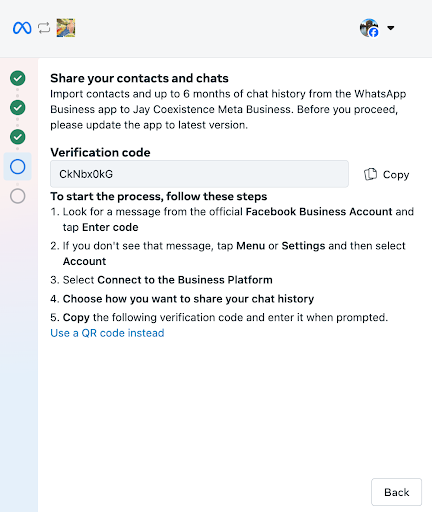
Step 5: Note the verification code
Meta shows a short verification code and the steps to follow on your phone. Leave this window open and pick up your phone.
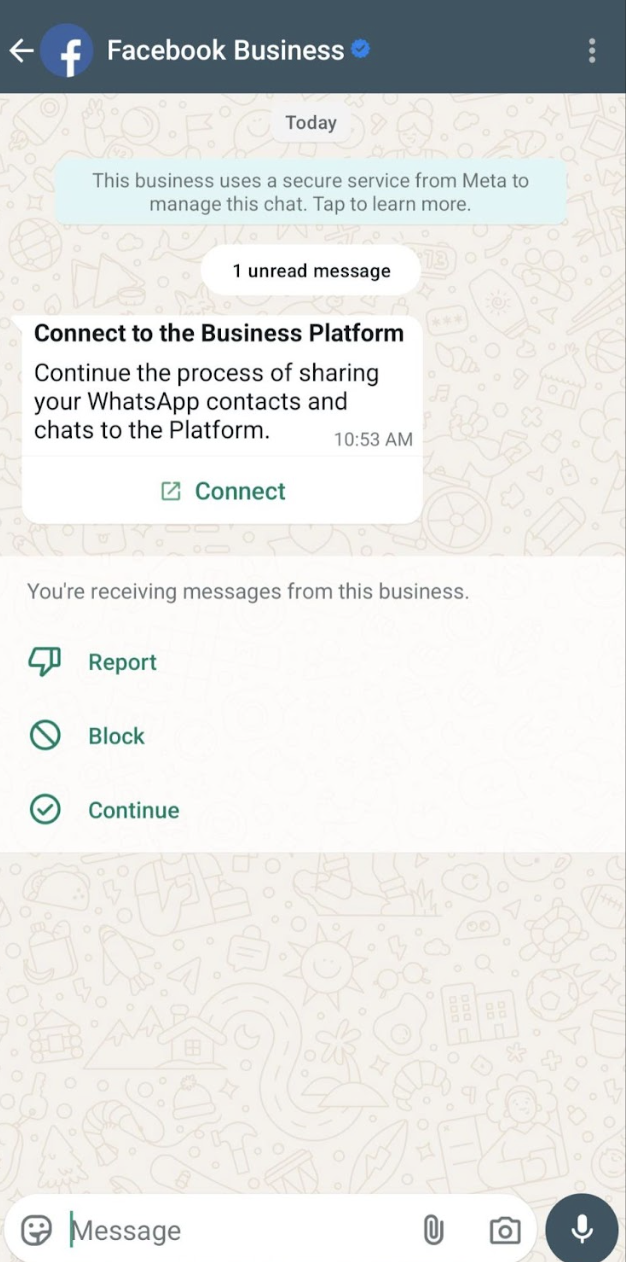
Step 6: Open the message on your phone
In the WhatsApp Business app, a message from the official Facebook Business account is waiting. Tap Connect.
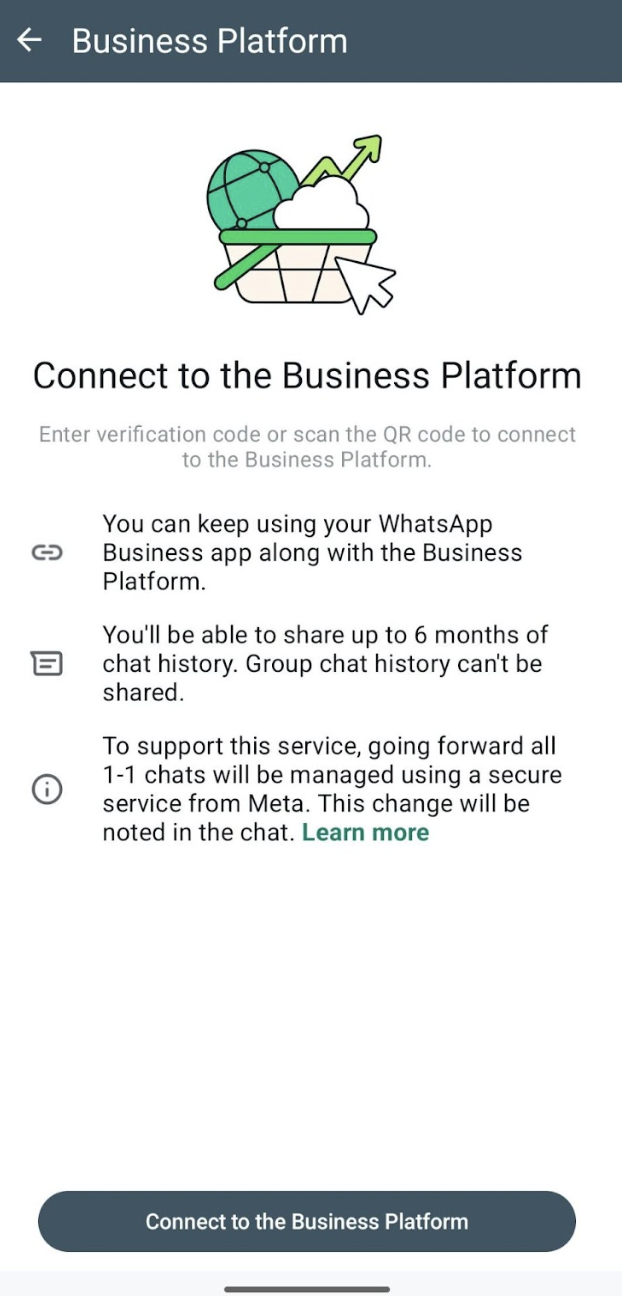
Step 7: Connect to the Business Platform
Read the short summary, then tap Connect to the Business Platform.
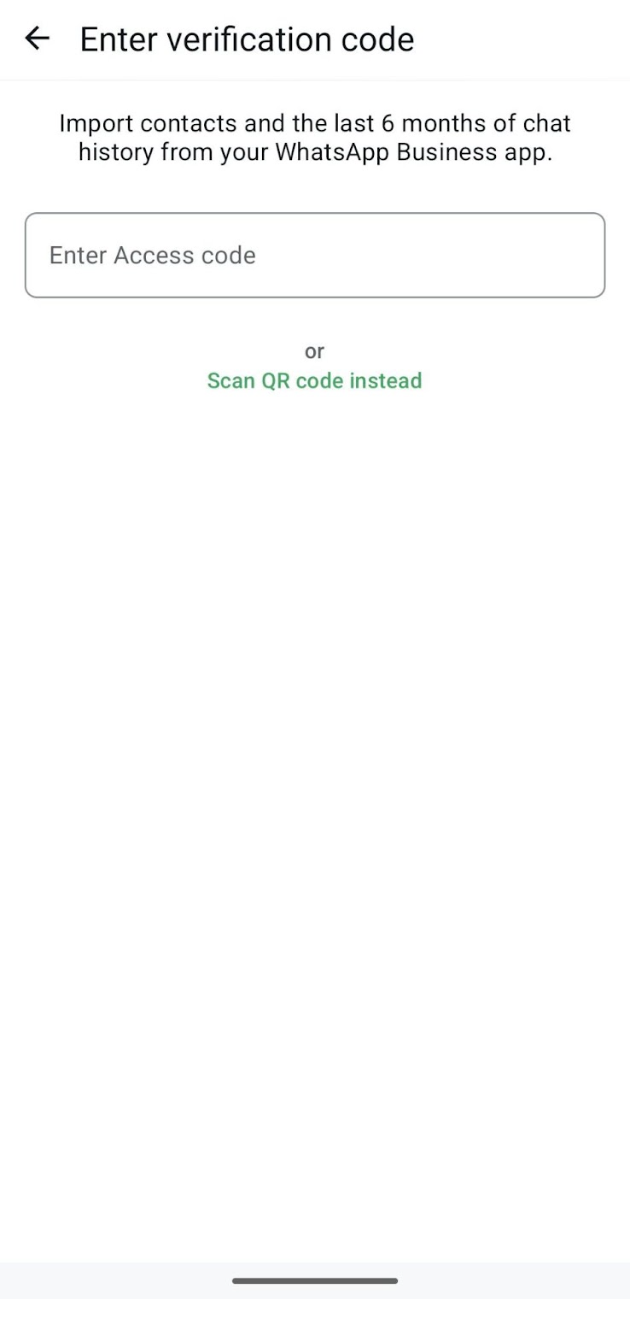
Step 8: Enter the verification code
Type the code from your computer, or scan the QR code instead.
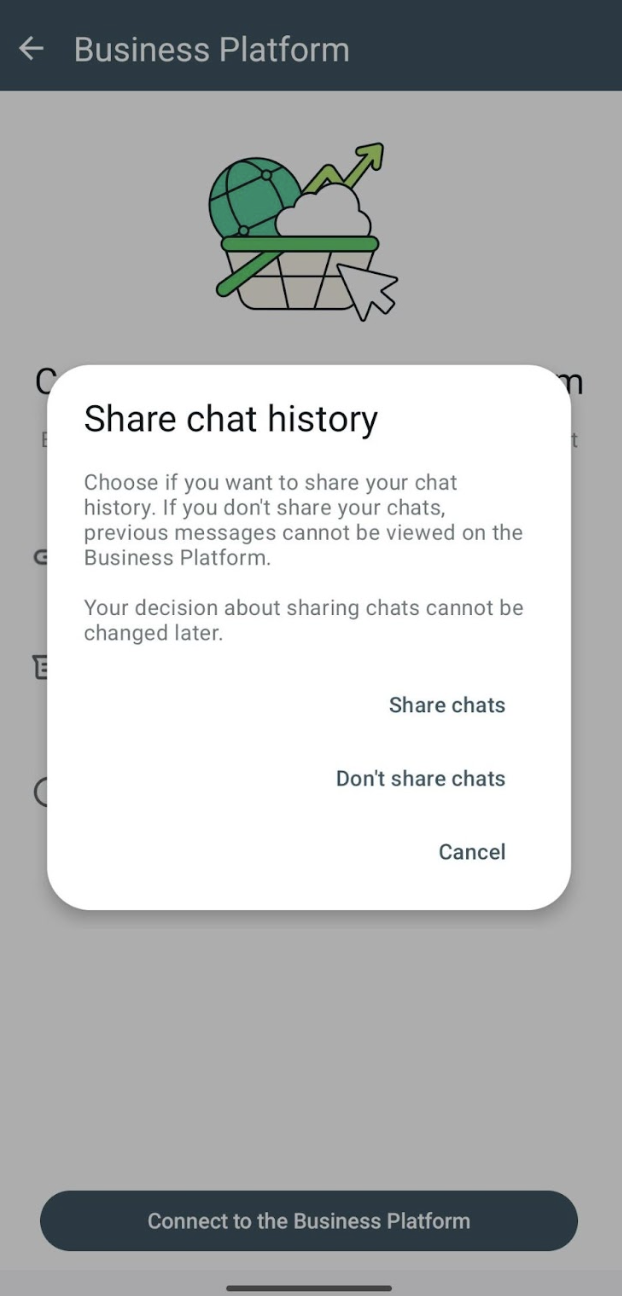
Step 9: Choose whether to share your chat history
Share chats brings up to six months of history across. Don’t share chats connects your number and leaves the old conversations on your phone only. This cannot be changed later, so decide before you tap.
Step 10: Bring your contacts and chats across
Back on your computer, Broadcaster says WhatsApp connected and offers to bring your existing information across. Two separate choices, and you can take one, both, or neither:
- Import my contacts brings the contacts from your WhatsApp Business app into Broadcaster, as Prospects.
- Import my chat history brings in your past conversations, if you chose Share chats on your phone in Step 9.
Each button confirms once it has been requested. This is a one-time step and must be done now, within 24 hours of connecting. Keep the app open on your phone while it runs; it happens in the background and can take a few minutes. Then press Continue.
Finish on your computer
Two short screens remain: your company details and business hours, and your message templates. The Quick Start Guide covers both. From now on, anything you send from the WhatsApp Business app keeps appearing in Broadcaster automatically.
What comes across, and what changes
Keeps appearing automatically, from the moment you connect: messages you send from the app and the replies you get, in Broadcaster’s Live Feed and Inbox.
Brought across once, when you choose it in Step 10: your WhatsApp contacts, and up to six months of past conversations if you shared them.
Does not come across: group chats are not brought in and are not mirrored.
Changes on the WhatsApp Business app after you connect:
- Disappearing messages, View once and Live location are turned off for one-to-one chats.
- Broadcast lists become read only. You cannot create new ones in the app; Broadcaster’s campaigns do that job properly instead.
- Other devices linked to your app are unlinked. You can link the supported ones again afterwards. WhatsApp for Windows and WhatsApp for Wear OS are not supported.
What it costs
Messages you send from the WhatsApp Business app on your phone stay free, exactly as before. Messages sent through Broadcaster carry the standard WhatsApp rates, the same as any other Broadcaster sending.
Replying
When someone messages you, you have 24 hours to reply freely from Broadcaster. After that, a reply from Broadcaster uses one of your approved templates. Replies sent straight from the app on your phone are not limited by this window.
Common gotchas
- Update the app first. Below version 2.24.17 the option to connect does not appear.
- The number must match. The number you type on your computer has to be the exact number in your WhatsApp Business app.
- Decide on history before you tap. Sharing your chat history, or not, cannot be changed later.
- Import during setup, not later. The import only works within 24 hours of connecting. Skip it and the only way back is to disconnect and start again.
- Keep the app open and your phone online while the import runs, or bringing your past chats across may not finish.
- Someone messages you the second you connect? You might briefly need to reply from the app on your phone. It settles within seconds.
Disconnecting later
You disconnect from your phone, not from Broadcaster. In the WhatsApp Business app go to Settings, then Account, then Business Platform, and tap Disconnect.
Written by Document Manager