Broadcaster Quick Start Guide
Last updated: October 21, 2026
Welcome to Broadcaster. This guide takes you from a new account to your first WhatsApp message in about half an hour. Before you start, you need a Facebook (Meta) account in good standing: read the Prerequisite article first if you have not.
First, choose how you want to connect
There are two ways in, and the steps differ.
I already use the WhatsApp Business app on my phone. This is the right choice for most established businesses. You keep your number, keep using the app, and Broadcaster connects to the same number alongside it. Your existing chats and contacts can be brought across with a one-time import during setup. Follow the separate guide instead: Connect your existing WhatsApp Business app to Broadcaster.
I am starting fresh with a new number, or a number not currently on WhatsApp. Carry on with this guide.
A warning for the second path only. If the number you want to use is currently on WhatsApp, personal or Business, and you want to keep its chats, do not start fresh: use the first path, which keeps everything. Starting fresh with a number already on WhatsApp moves the number over and the old chat history on it is lost for good. Export any chats you want first; the Advanced setup guide explains how they come back in afterwards.
Before you begin
Have these ready:
- A Facebook account. Personal or business; you can create a Facebook business portfolio during setup if you do not have one.
- A phone number for WhatsApp Business. Mobile or landline, in the same country as your business, and able to receive a verification code by text or voice call. If it is on another WhatsApp account, you will be asked to disconnect it from there first.
- A payment method. Meta asks for a card on your Facebook business account before it will send paid messages. WhatsApp charges for template messages you send outside a live conversation; see Meta’s pricing for the rates. Broadcaster does not bill you for messages.
Step 1: Connect WhatsApp (5 to 10 minutes)
The first screen after you register is Connect WhatsApp Business Account. It lists the six things Meta’s signup will ask for: your Facebook login, a business portfolio, a WhatsApp profile, a phone number, verification of that number, and a payment method.
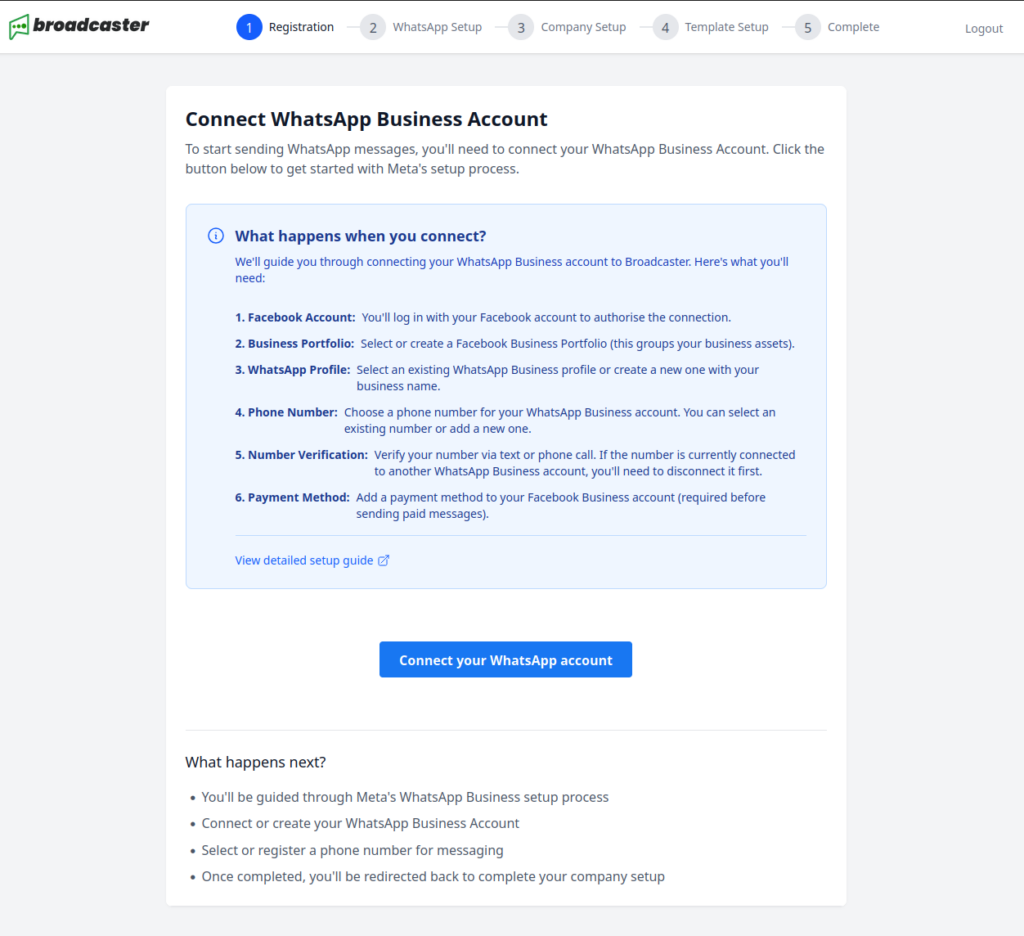
- Press Connect your WhatsApp account. Meta’s signup opens in a pop-up window. Keep the Broadcaster window open behind it.
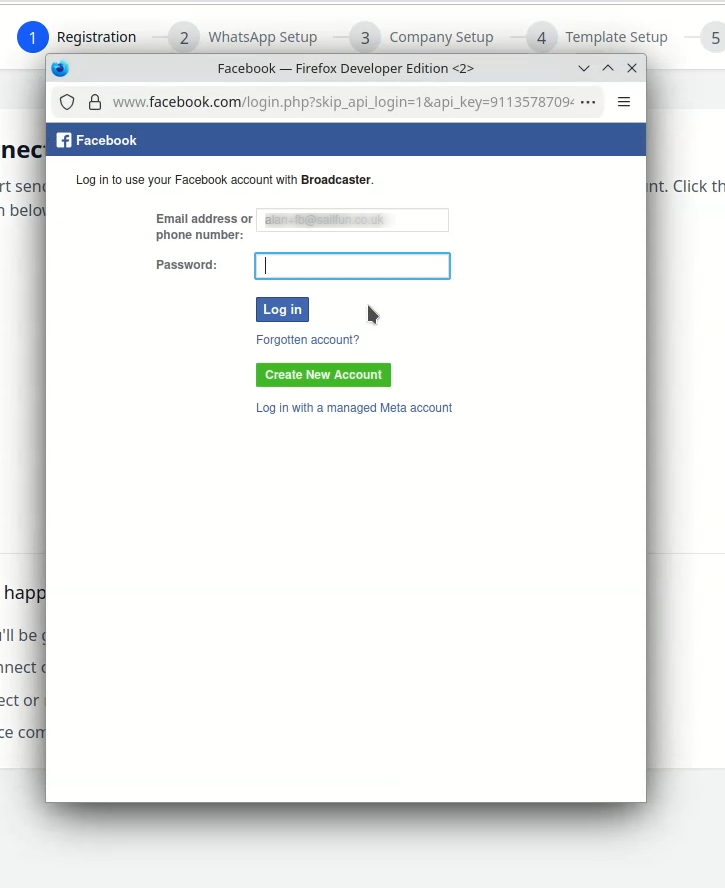
- Log in to Facebook when the pop-up asks.
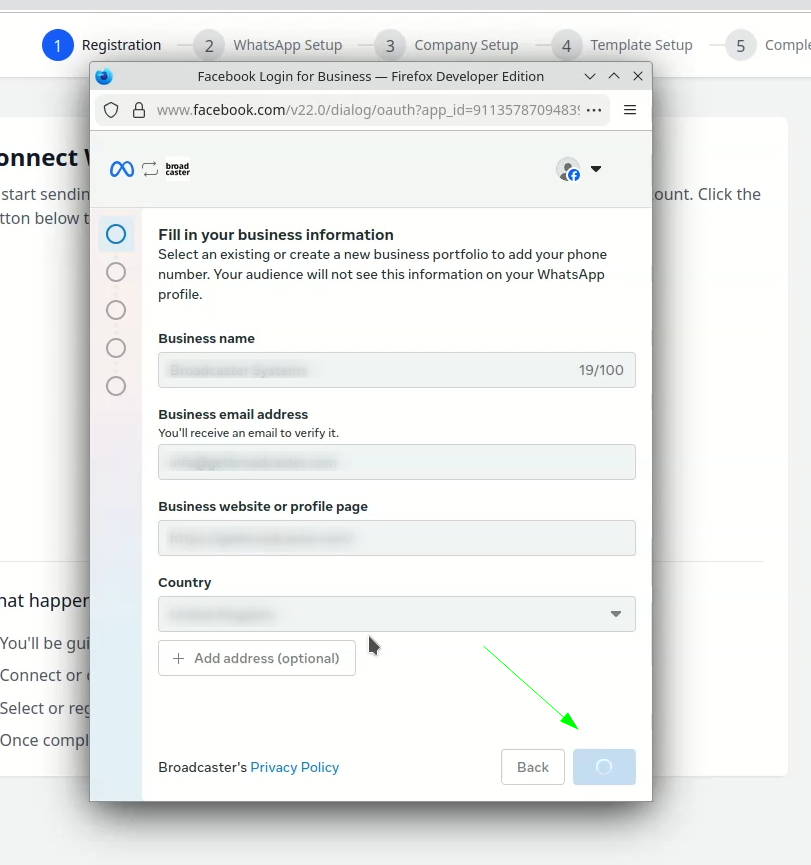
- Fill in your business information, or choose the business portfolio you already have.
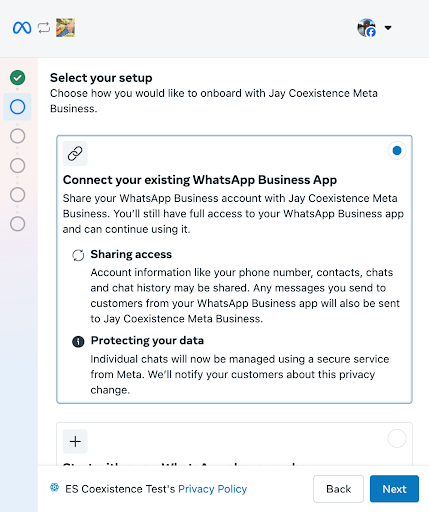
- Choose your setup. For the fresh path, create a new WhatsApp Business account rather than connecting an existing app.
- Add your phone number. Choose an existing number from your portfolio, or add a new one.
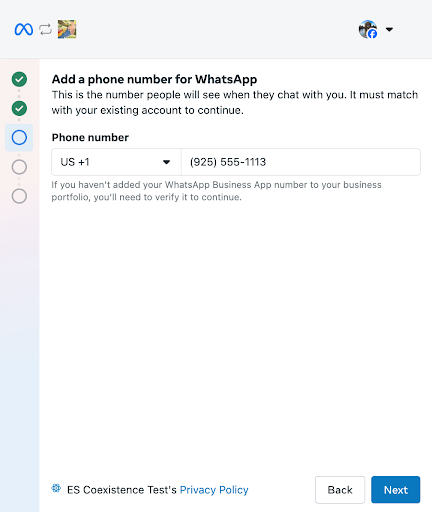
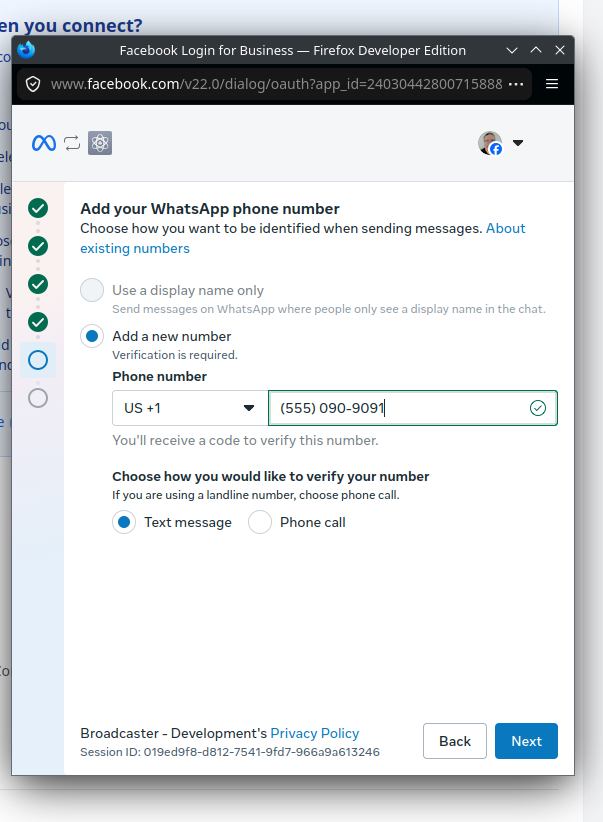
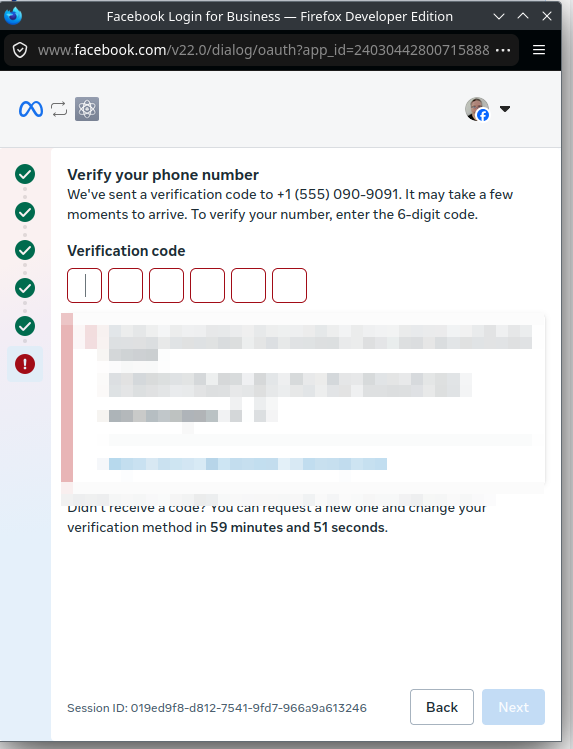
- Verify the number. For a new number, choose text message or phone call, and enter the six-digit code Meta sends.
- Wait while Meta connects your account, then press Finish. Meta offers to add a payment method on the same screen; do it now if you have not already.
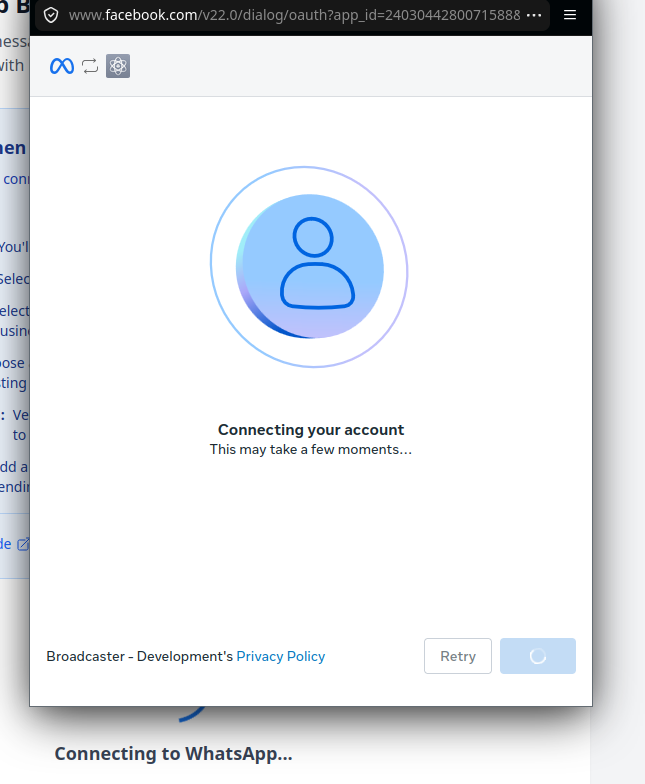
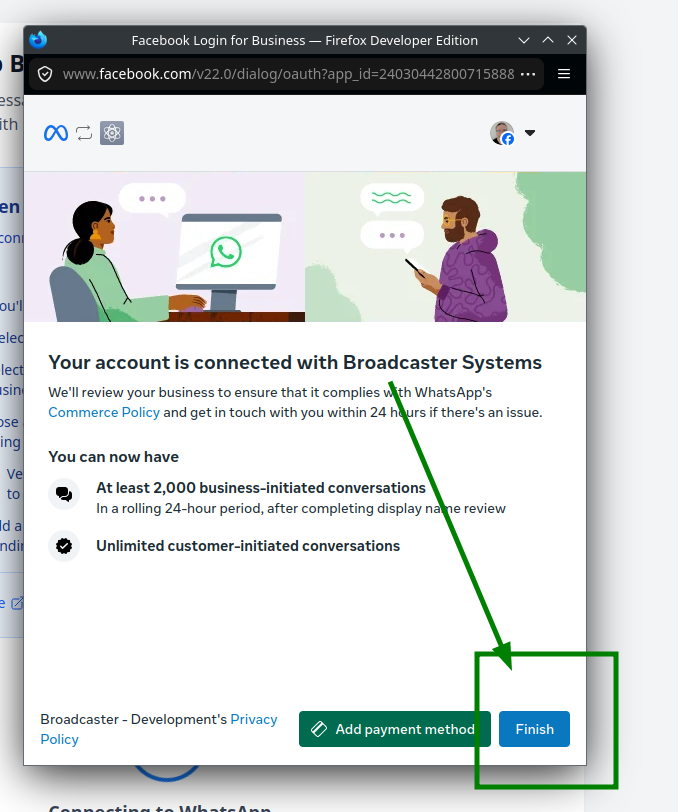
Only after Finish do you return to Broadcaster, which then registers your number. The screen says Finalising Setup and asks you not to close the browser; it can take 30 seconds or more. If you cancel or refresh at any point you start the step again, which is a nuisance rather than a problem.
If the signup reported that your number is connected to the WhatsApp Business app, Broadcaster offers Import my contacts and Import my chat history at this point. That is the first path, covered in the other guide; on the fresh path you go straight to Step 2.
If something goes wrong
- “Phone number already in use.” On the fresh path this means the number is active on another WhatsApp account, and you must remove it there first. Export its chats before you do, if you want them.
- Setup Failed or Connection Timeout. Meta’s services are sometimes briefly unavailable. Press Try Again, or Refresh Page and start the step again. If it keeps happening, contact support from the Help button.
- Stuck on a loading screen. Refresh the page and try again.
Step 2: Company setup (5 minutes)
The Complete Company Setup screen asks for the details every message will use. You can change all of them later under Company in the left-hand menu.
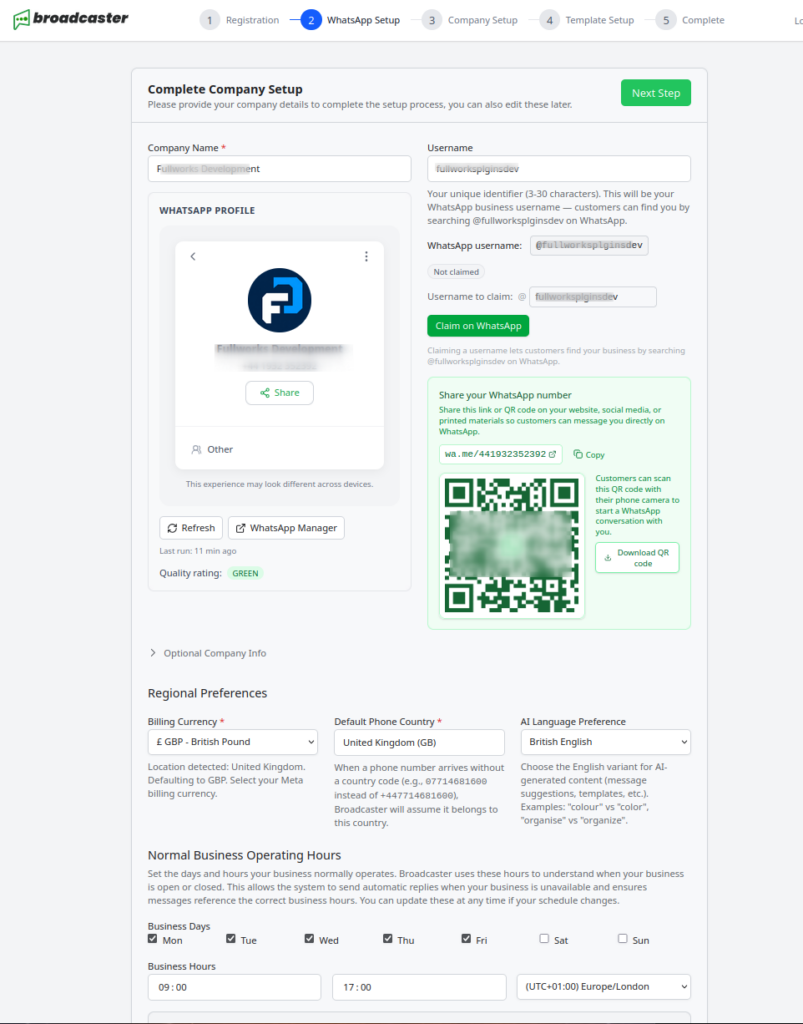
- Company Name, and what to call someone when you do not know their name (the default is “there”, as in “Hi there”).
- Your WhatsApp Profile username, Company Email, an alternative non-WhatsApp phone number, website and address. These fill the matching placeholders in your templates.
- Regional Preferences: your Billing Currency, the Default Phone Country for numbers typed without a country code, and the language for AI features.
- Normal Business Operating Hours: tick your Business Days, set your Business Hours start and end, and choose your timezone.
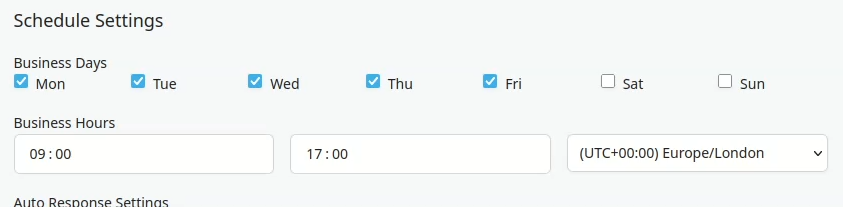
Get the timezone right. Reminders and scheduled messages go out at the time you set in this timezone, and your automatic out-of-hours reply switches on and off by it.
Press Next Step.
Step 3: Templates (10 to 15 minutes)
The Set Up Your Templates screen explains the one rule that shapes everything else in Broadcaster.
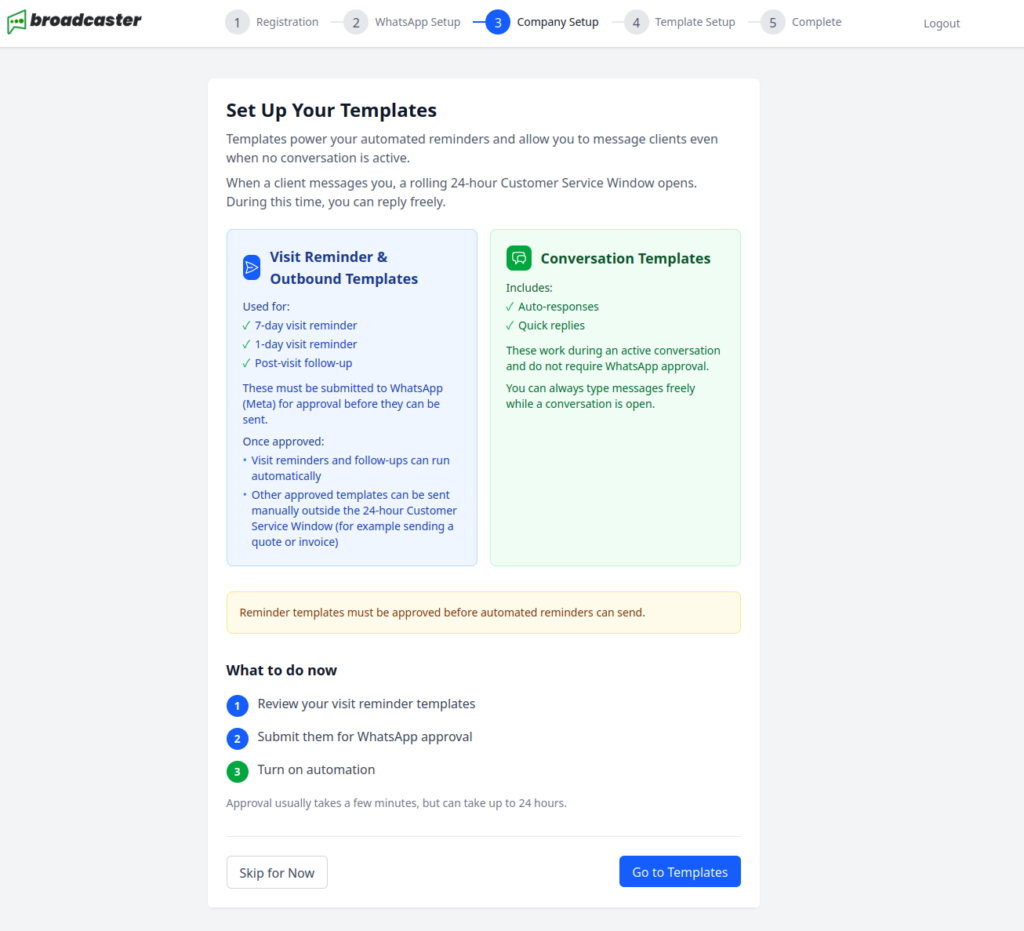
The 24-hour rule. When someone messages you, a rolling 24-hour Customer Service Window opens, and inside it you can reply with anything you like. Outside that window, WhatsApp only lets a business send messages it has approved in advance. Those approved messages are templates. Reminders, follow-ups, invoices and anything you start yourself all go out as templates, so they must be approved before they can be used.
Two kinds of message do not need approval: your automatic replies during and outside business hours, and your quick replies, because both are only ever sent inside an open conversation.
Press Go to Templates. (Skip for Now takes you to the dashboard instead; you can come back through Templates in the left-hand menu.)
Review and submit your templates
Broadcaster has already written a starter set for you, and the templates page shows them with a warning that they have not yet been submitted:
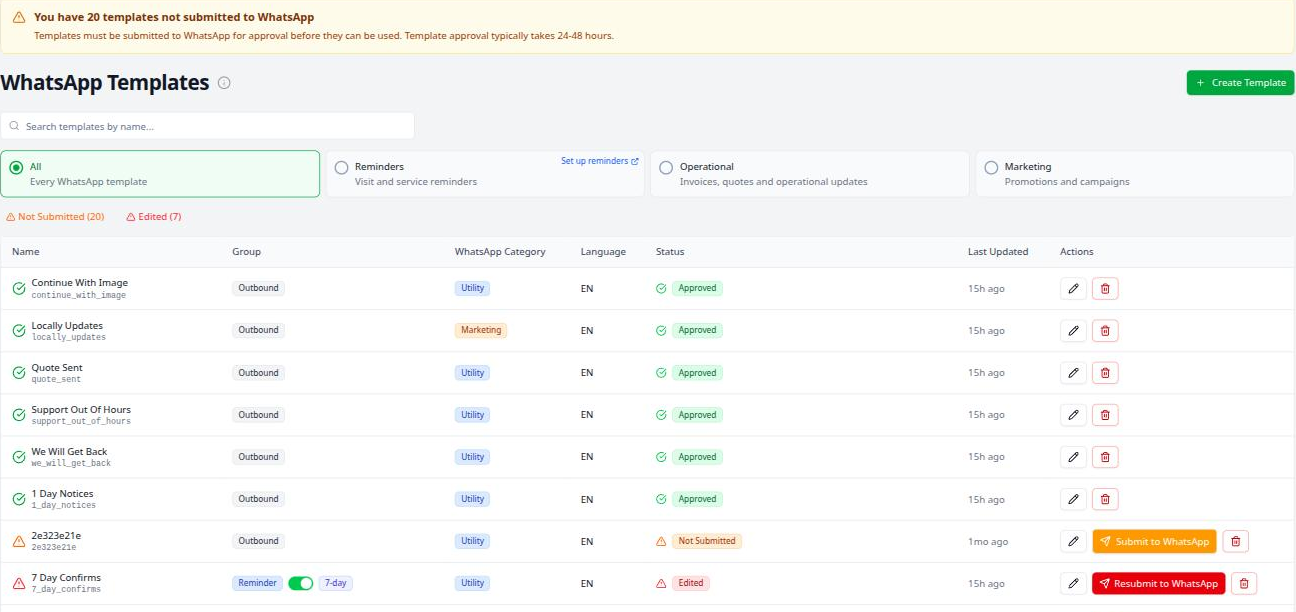
| Template | What it is for |
|---|---|
| 7 Day Notices | A week’s notice of an upcoming visit |
| 1 Day Reminders | A reminder the day before |
| Follow-ups | A message after the visit |
| Continue Conversation | The message Broadcaster sends to reopen a conversation whose 24-hour window has closed |
| Invoice Available, Invoice Reminder | An invoice sent, and an overdue invoice chased, each with a PDF attached |
| Quotation | A quote, with a PDF attached |
| Followup Video | A follow-up carrying a video |
For each one:
- Press the pencil icon, Edit template, and read it.
- Change the wording to sound like your business. Everything you type is saved as you go; the editor says Draft saved.
- Keep the placeholders in curly brackets, such as
{{client_first_name}}and{{apt_datetime_words}}. They are filled in for each recipient when the message is sent: “Hi {{client_first_name}}, your visit is on {{apt_datetime_words}}” goes out as “Hi Jane, your visit is on Tuesday 15 March at 2pm”. The Insert Variable control lists every placeholder you can use, with what each fills in. - Press Submit to WhatsApp for approval. Broadcaster asks you to confirm, because once submitted the template cannot be used until Meta approves it.
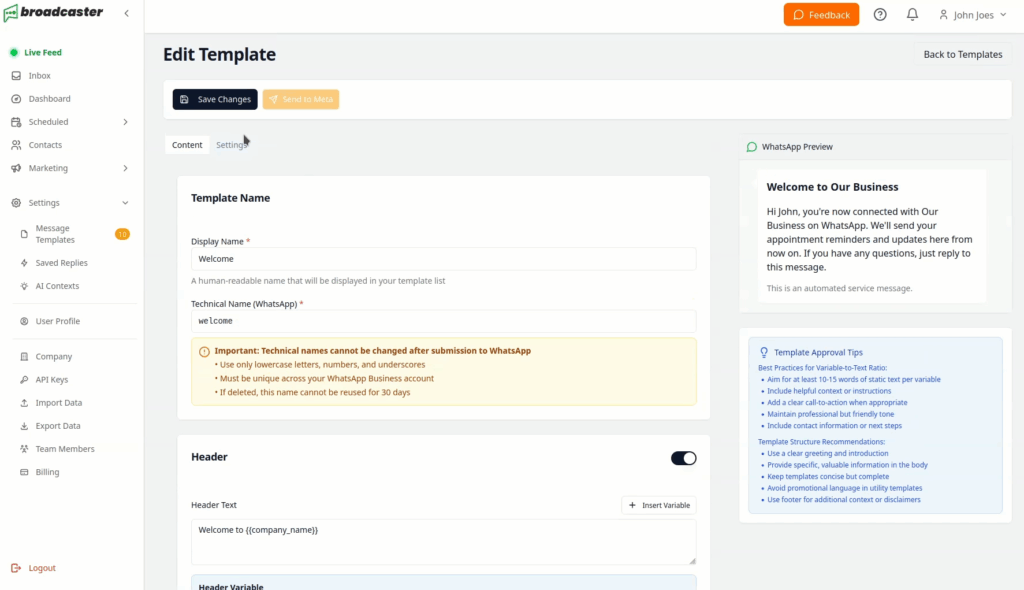
A template’s status on the list reads Not Submitted, Pending Approval, Approved or Rejected. Approval usually takes a few minutes and can take up to a day. A rejected template comes back with Meta’s reason; edit it and submit again.
Tips for faster approval: plain, professional language, a clear purpose, and no placeholder that could be filled with anything at all.
Step 4: You are ready
Your account is set up. Here is what works from now, and what waits on approval.
Receiving messages
Anyone who messages your number appears in Live Feed and Inbox in the left-hand menu. Live Feed drops you straight into the most recent conversation that needs you; Inbox lists every conversation so you can work through them. Open one and reply. For 24 hours after their last message you can type anything.
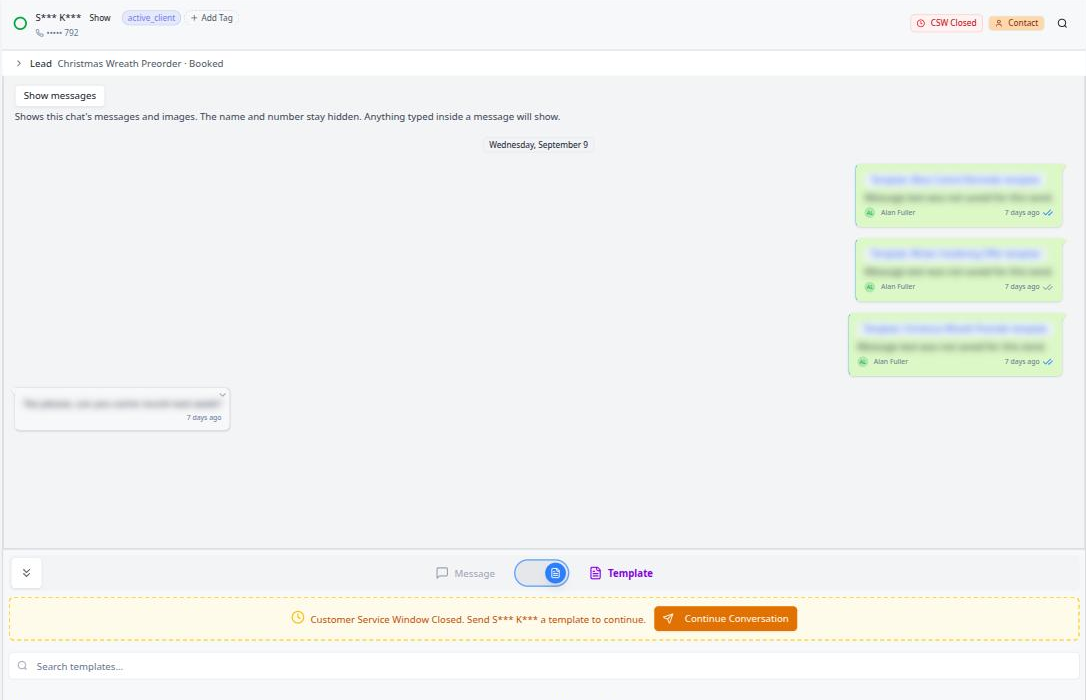
The composer has a switch between Message, for typing freely, and Template, for sending one of your approved templates. When the 24-hour window has closed, the composer says so and offers Continue Conversation, which sends your Continue Conversation template to reopen it.
Adding your first contact
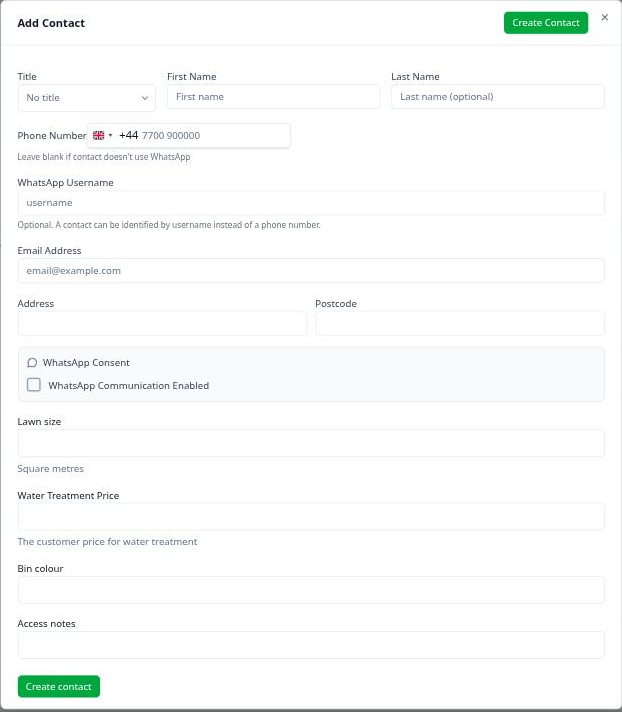
Open Contacts and press Add Contact. The panel takes a name, phone number, WhatsApp username, email and address, and the WhatsApp consent details. Press Create contact. If the number already belongs to someone, the panel says so and offers to open them instead. Every contact starts as a Contact; switch anyone who has only enquired to Prospect on their row.
The green chat icon on a contact’s row opens a conversation with them.
Messaging someone who has not messaged you
That needs an approved template, because there is no open window. Once your templates are approved: open the conversation, switch the composer to Template, choose one, and send.
While you wait for approval
- Bring your contacts in. If they are in job software or a CRM, use the Auto-Uploader: it reads your software’s own export and keeps Broadcaster up to date. See Download, install and set up the Auto-Uploader. To change many contacts at once, see Import your contacts.
- Connect your calendar so reminders send themselves: Integrations, then ICS Calendar Feed.
- Set when reminders go out: Appointments, then Settings.
- Turn on browser notifications from your Profile, so you hear a message arrive.
- Add team members under Team Members.
Getting help
Press Help in the top right of any page. It links to this knowledge base and holds a support form; we reply by email within 24 hours. You can also email [email protected]. The form sends the page you were on and your browser details with it, so describe what you were doing and what you expected to happen.

Written by alan