Advanced setup guide
Last updated: October 21, 2026
Each section stands on its own. Do the ones your business needs and skip the rest.
Bring in a contact’s WhatsApp history
If you have been running your business from the WhatsApp app, the conversations you already have with people are worth keeping. Broadcaster imports them one contact at a time from a WhatsApp chat export.
On your phone, open the conversation in WhatsApp and use its Export chat option. WhatsApp gives you a ZIP file containing the chat as a text file and, if you chose to include media, the photos and documents. Save it somewhere you can reach from your computer. One conversation per export; a file holding two chats will be refused.
In Broadcaster:
- Open Contacts and find the person. If they are not in Broadcaster yet, add them first.
- On their row, press the Upload Chat History icon.
- Upload File: drop the ZIP on the box or press Choose File. The file can be up to 50 MB. Broadcaster reads it and shows the date range, the number of messages and the participants it found.
- Map Participants: tell Broadcaster which of the names in the export is the contact and which is your business.
- Import Options: choose whether to import the media files (on by default) and whether to replace any chat history the contact already has in Broadcaster (off by default). Check the summary, then press Upload Chat History.
The conversation appears in the chat window with the messages dated as they were in WhatsApp.
If the upload is refused, the message says why: no text file in the ZIP, more than one text file, or a text file that does not look like a WhatsApp export.
Connect your calendar so reminders send themselves
Broadcaster reads appointments from any calendar that publishes an iCal feed (also called an ICS feed): Google Calendar, Outlook, Apple Calendar, and most job-management systems. Once connected, appointments arrive on their own and WhatsApp reminders go out on the schedule you set. Broadcaster only reads the feed; it never writes to your calendar.
Get the feed address
Every calendar has a private address for its feed. The Connecting Your Calendar article has the steps for Google, Outlook and the job-management systems we see most. The address starts with https:// and usually ends in .ics. Treat it like a password: anyone who has it can read your calendar.
Add the connection
- Open Integrations in the left-hand menu.
- On the ICS Calendar Feed card, press Add connection.
- Paste the address into Calendar URL, choose how often Broadcaster should check it (Every hour, Every 6 hours or Twice a day), and press Add calendar feed.
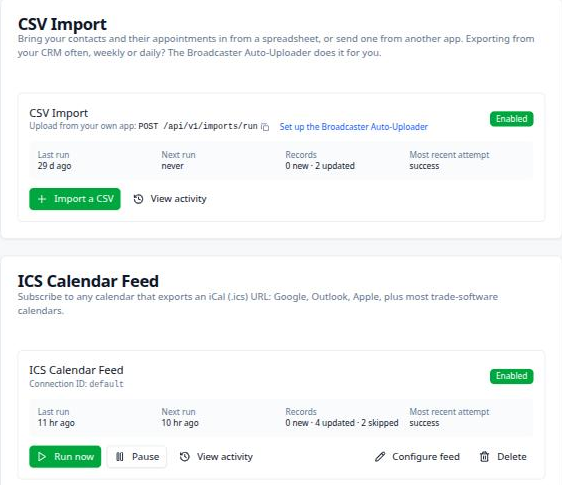
The card now shows when the feed last ran and when it runs next, with Run now if you do not want to wait. Running again straight after a run is held back for a couple of minutes. One feed per business: if your appointments are spread across several people’s calendars, publish one shared calendar and feed that.
Set how appointments are booked
Press Configure feed on the card. Every setting on this page saves as you change it.
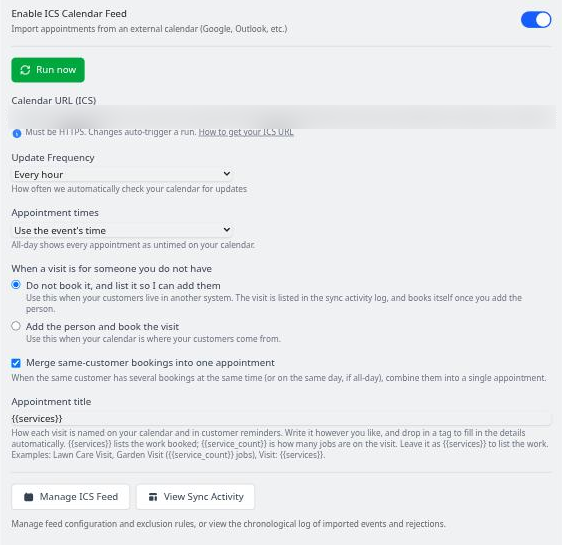
- Enable ICS Calendar Feed switches the feed on and off. Off stops new appointments arriving; it does not stop reminders already scheduled.
- Update Frequency is the same choice you made when adding the feed.
- Appointment times: use the event’s own time, or show every appointment as all-day.
- When a visit is for someone you do not have: Broadcaster matches each event to a contact by phone number, then by email, then by name. When nobody matches, the default is to hold the visit and list it for you to add the person, after which it books itself. The other option adds the person and books the visit straight away.
- Merge same-customer bookings into one appointment combines several events for the same person at the same time into one appointment, and lets you set the Appointment title pattern that names it.
Manage ICS Feed opens the feed’s own page, where you can add exclusion rules: any event whose title contains a word you list, such as “lunch” or “dentist”, is left out. Those rules have a Save Rules button. View Sync Activity opens the Integration Activity page, a log of every run with what was created, updated, removed and rejected. A visit that was held because nobody matched is listed there.
An event you delete from your calendar is removed from Broadcaster on the next run, and its reminders with it.
Set when reminders go out
Reminder timing is not on the feed. Open Appointments in the left-hand menu, then Settings. Each schedule pairs an approved WhatsApp template with a number of days before the appointment, from 30 days before to 30 days after, up to ten schedules. Only templates WhatsApp has approved appear in the list, so submit your reminder templates before you come here.
Import your contacts and appointments
If your contacts are in job software or a CRM, use the Auto-Uploader. It is a small app for your PC or Mac that reads your software’s own export as it is, with ready-made setups for Real Green and Jobber, and sends each new export to Broadcaster for you. For other software, contact support: a setup for it can be built. See Download, install and set up the Auto-Uploader.
The spreadsheet import below is deliberately simple, with fixed columns. Use it to change many contacts at once (export from Contacts, edit, import the file back) or to add a short list by hand. Import your contacts has the detail.
- Open Integrations, and on the CSV Import card press Import a CSV.
- Press Download a sample spreadsheet to see the column headings Broadcaster understands. Headings must match exactly.
- Drop the file on the box, or press Choose a file, and press Import.
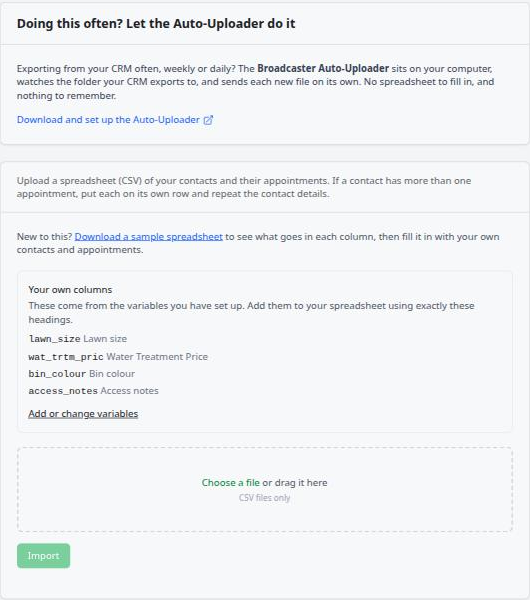
When it finishes the page says how many contacts and appointments were created and updated, and lists any rows it could not use, with the row number and the reason.
What the columns mean:
- First Name, Status and Phone are required. Status is
ContactorProspect. - Contact columns: Title, Last Name, Email, Address, Postcode, Notes, Tags (separated by commas), WhatsApp Opted In, Service Messages, Marketing Messages, WhatsApp User ID, WhatsApp Username, and Contact External ID for the number your other system uses for that person.
- Appointment columns: Appointment Date, Appointment Title, Appointment End, Appointment Description, Appointment Notes, Appointment Status, Technician, Appointment Addressee, Appointment Address and Appointment Postcode. If a contact has more than one appointment, put each on its own row and repeat the contact’s details. Any appointment column in the file makes Appointment Date and Appointment Title required.
- Your own columns: any variable you have set up appears under that heading on the import page with its exact column name.
- A column heading Broadcaster does not recognise is reported and ignored; it does not stop the import.
- A
yesin a consent column cannot switch messages back on for someone who turned them off. To do that deliberately, give the reason in the Consent Override Reason column. A consent column must sayyesorno: any other value, such asTRUEor1, is reported on the run and leaves the setting as it was.
Files can be up to 10 MB. Phone numbers should carry the country code, such as +44 for the UK.
Every import is recorded on the Integration Activity page alongside your calendar runs.
Set up quick replies
A quick reply is a message you write once and send with one click during a conversation: “Running late, with you in twenty minutes”, “Thanks for getting in touch, what area are you in?”. They are yours alone and do not need WhatsApp’s approval, so they are ready the moment you save them.
- Open Quick Replies in the left-hand menu.
- Press Create Manual Quick Reply, write the message, and save.
Two ship ready-made with every new account: one to qualify an enquiry and one for running late. Edit them or replace them.
To use one in a conversation, switch the composer from Message to Template. The picker opens with your quick replies in the first section, and your WhatsApp templates below them. Choose one, and it is sent as it stands.
Quick replies are for the conversation you are already in. They are not the Quick Reply buttons on templates, which let a contact answer a message with one tap.
Teach the AI Composer about your business
The AI Composer drafts and rewrites replies for you in the chat window. Out of the box it knows nothing about your business; AI Contexts are where you tell it.
- Open AI Contexts in the left-hand menu and press Add Context.
- Give it a Name, a Category (Company Information, Product Details, Policies & Guidelines, Communication Guidelines or Custom), and write the Content: what you do, the areas you cover, your prices, how you like to sound, the questions you get asked and the answers. Leave Active ticked and press Create Context.
Write it the way you would brief a new member of staff. The more specific the content, the closer the drafts.
The same page holds the AI Agent Action Buttons: the one-click prompts that appear in the AI Composer panel. Five are there from the start (Draft Response, Friendlier, Professional, Add Appointment and Follow Up), each with the instruction it sends. Edit them, switch one off, or add your own with Add AI Agent Action: an emoji, a label, and the prompt.
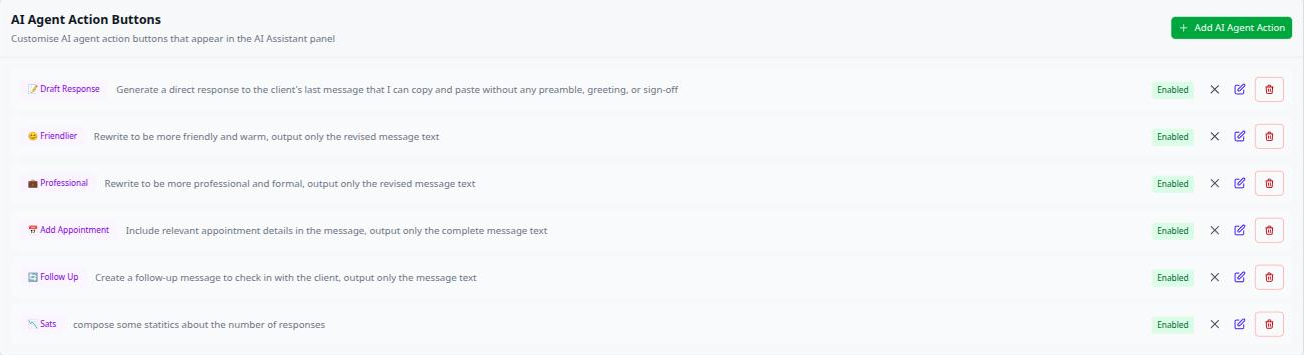
In a conversation, the purple AI Composer button sits in the composer toolbar. It is only available while the 24-hour reply window with that contact is open, because that is the only time a free-text reply can be sent.
Invite your team
Everyone who answers messages can have their own login. Users are unlimited.
- Open Team Members in the left-hand menu and press Invite Team Member.
- Enter their Name and Email Address, choose a role, and press Send Invitation.
They receive an email with a link that works for seven days. Once they accept, they appear in the list, and you can change their role or remove them from there.
Two roles can be given:
- Operator: the daily work. Messages, contacts and the schedule. Nothing administrative and nothing to do with billing. This is the default.
- Admin: everything an operator can do, plus settings, templates and team members. Can see billing but cannot change or cancel the plan.
The Owner role is yours as the account holder and cannot be given to someone else. Only the owner can change the plan or delete the account.
An email address that already has a Broadcaster login on another business cannot be invited; each person has one login.
Turn on notifications, and turn them off when you are not working
Browser notifications tell you a message has arrived while you are in another tab or another app. They are set per device, so do this on each computer and phone you use.
- Open Profile from the menu under your name, and scroll to Notification Preferences.
- Switch on Enable Browser Notifications. The browser asks permission; allow it.
- Under Complete Setup, press Activate this device, then Send Test to check one arrives.
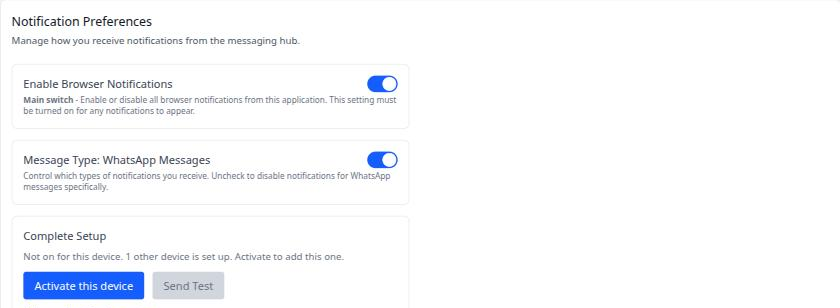
The line under Complete Setup tells you whether this device is on and how many others are set up. If your browser has blocked notifications for the site, the panel says so and shows how to allow them again from the padlock in the address bar.
The Do Not Disturb section below silences notifications when you are not working; messages still reach you in the app. Choose Use Business Hours to silence them outside the hours on your Company page, or Custom Schedule to set the quiet hours for each day yourself.
There is a separate article on browser notifications with the steps for each phone.
Protect your login with two-factor authentication
With two-factor authentication on, logging in needs your password and a six-digit code from an authenticator app on your phone. Do this for every login on the account, and especially the owner’s.
You need an authenticator app: Google Authenticator, Microsoft Authenticator, Authy or any other that supports one-time codes. You also need a password set on your Broadcaster account; if you log in with Google or another social login and have never set one, the Profile page offers to set one first.
- Open Profile and scroll to Two Factor Authentication.
- Press Enable. A QR code appears, with a setup key beneath it for apps that cannot scan.
- Scan the code in your authenticator app, type the six-digit Code it shows, and press Confirm.
- Copy the Recovery Codes into your password manager. Each one lets you in once if you lose your phone. Regenerate Recovery Codes gives you a fresh set at any time.
From then on, each login asks for the code after your password. Tick Trust this device to skip the code on that browser for two weeks. If your phone is lost, press Use a recovery code on the login page and enter one of the codes you saved.
Disable on the Profile page turns it off again.
Where next
- The lead pipeline and campaign articles under Campaigns and leads cover getting work from your contact list.
- Add a WhatsApp contact button to your website puts an enquiry form on your site that lands in Broadcaster.
- The Broadcaster API and the Auto-Uploader articles cover connecting other systems.
Written by alan